Guide
Practice Planner: quick start
The Practice Planner keeps a list of the exact things you're working on and tells you each day which of them are due. You practice, rate how it went, and the planner helps you decide when each one comes back. This page covers just enough to run your first session. The full guide has everything else.
1. Find it
Practice is in the site's main menu: in the top bar on a computer, under ☰ on a phone. If you'll practice from a phone or tablet, put Fret Science on your Home Screen so the planner is one tap away.
2. Add three to five things
Start small. A short list is easier to keep up with, and you can add more any time.
Not sure what to pick? A starter set adds three exercises from a course's first lessons in one tap, already scheduled: Starting Improv 101 or Starting CSF. New to both courses? Start with Improv 101.
- One exercise from a lesson. On a lesson page, switch the course guide section to Exercises and tap Add to practice under the one you want.
- From a course's list. The Courses tab lists every exercise in Improv 101 and CSF. Tap + Add beside the ones you want.
- A whole lesson or a tool. Every lesson you can watch, and every practice tool, has an Add to practice button. A tool item keeps its settings, so a metronome item always reopens at the same tempo.
- Anything else. Tap + Add on Today and paste a link (a YouTube video, another site), or leave the link empty and type a title such as "Real Book, p. 37".
The sheet that opens is already filled in. Check the title and tap Add to practice. If you add something by mistake, tap ⋯ at the end of its row on Today and choose Delete.
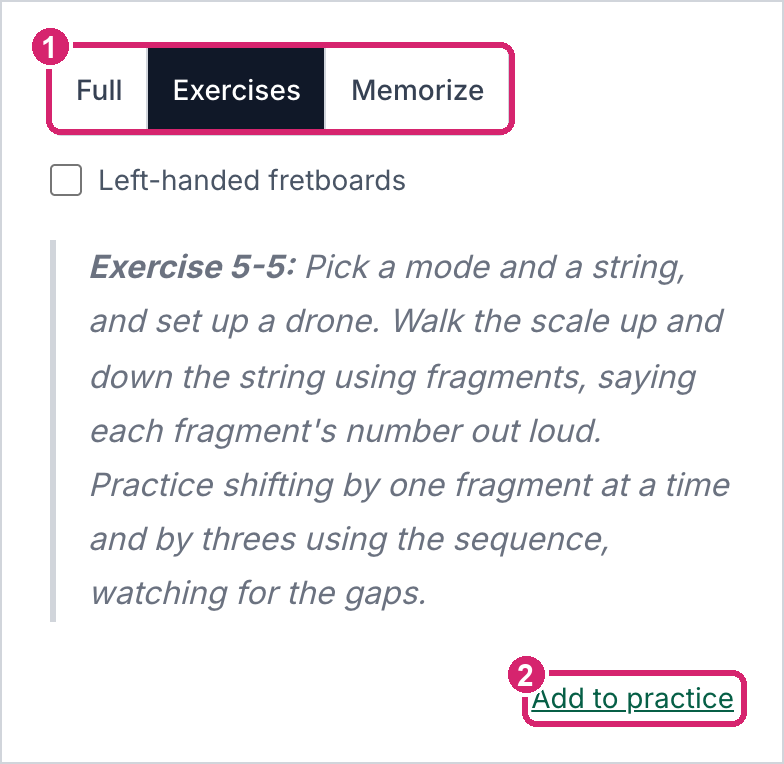
① On any course lesson, switch the guide section to Exercises. ② Add to practice under the exercise you want.
Not sure what to add? In a 1:1 session, Keith can help you build a first list around what you want to work on.
3. Start a session
Open Today and tap Start with what's due. A new item is due the day you add it, so everything you just added is on the list.
The planner takes you to the first item's page with the tuner open over it. Allow the microphone when your browser asks, tune up, and tap Tuned, start. The item's clock starts then. Across the top of the page sits the session bar: the item's title, the clock, and five ratings. An item with no page on the site, like a book or a YouTube video, opens on the session screen under the same bar.
4. Rate it, then Next
Practice the item. When you're done, tap the rating that matches how it went, from Rough to Clean & fluid, and then Next. The planner logs the rating with the time on the clock and opens the next item. Rough items come back sooner, and clean ones wait longer. With no rating picked, the button says Skip and moves on without logging anything. On the last item, it says Finish.
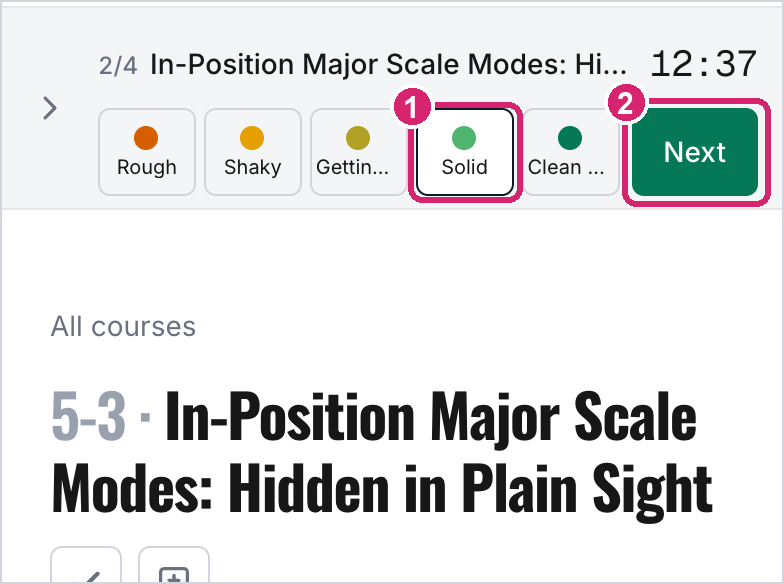
① Solid picked. ② Next logs it and moves on.
Rate honestly rather than generously. The ratings are all the schedule has to go on.
5. Come back tomorrow
Open Today again. Whatever is due is waiting, in order, and the things that went well have moved a few days out. That's the whole routine.
When you want more
The full guide covers the rest:
- A practice session: picking items yourself, the metronome and tuner in the bar, notes and tempo, pausing.
- Practicing one item on its own.
- Watching your progress: each item's history and charts, and your progress through each course.
- Tuning the schedule, if the defaults don't suit you.