Guide
How to use the Practice Planner
The Practice Planner keeps a list of the exact things you're working on: a lesson, one exercise from a lesson, a jam track, a metronome setting, a page in a book. Each day it tells you what's due. You practice, tap a rating for how it went, and the planner helps you figure out when to bring that item back. Things that went badly come back soon, and things that went well wait longer.
In a hurry? The quick start covers just enough to run your first session.
This guide walks through the planner the way you'd use it in a normal week. The screenshots come from a phone, because that's where most people will use it, sitting at the guitar. It works the same way on a computer, just with more room. The numbers on each screenshot match the numbered caption beneath it.
There's a note at the end on how to tell me when something doesn't work the way you expect.
1. Finding the planner
With a Silver, Gold, or Platinum membership, a Practice link appears in the site's main menu. On a computer, it sits in the top bar. On a phone, it's in the ☰ menu. Inside the planner, five tabs take you around: Today, Items, Courses, History, and Setup. On a phone, the tabs move to a bar along the bottom of the screen.

① The Practice link in the header. ② The planner's tabs.
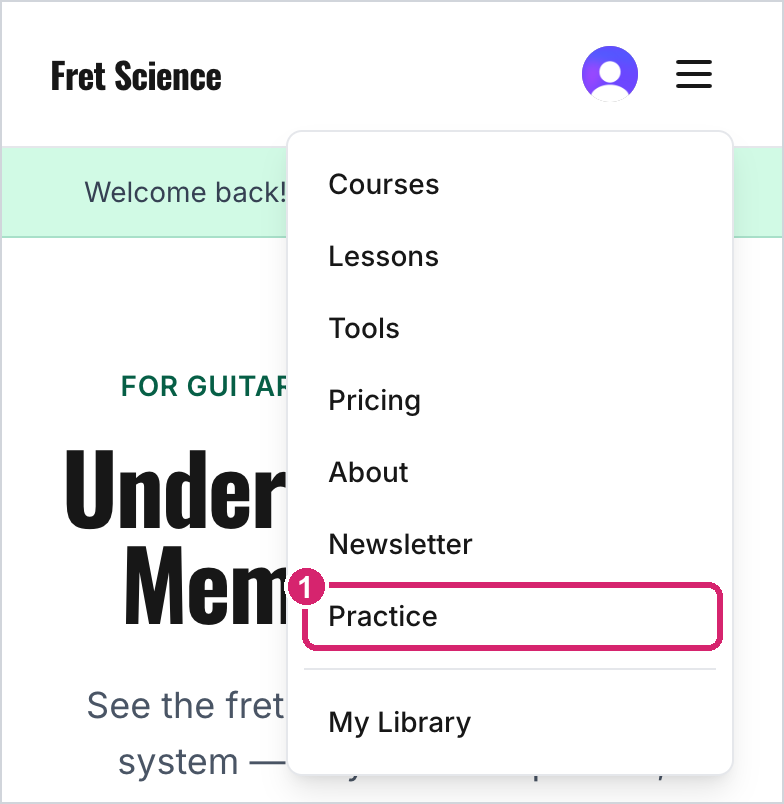
① On a phone, Practice is in the ☰ menu.
On a phone or tablet, the quickest way in is an icon on your Home Screen. On an iPhone or iPad, open fretscience.com/practice in Safari, tap Share, then Add to Home Screen, and turn off Open as Web App before you tap Add. The icon then opens Today in Safari, already signed in. With Open as Web App left on, the icon runs the site as a separate app with its own sign-in, and Patreon sign-in doesn't work there. The Patreon app's built-in browser has the same problem, so open Fret Science links in Safari rather than from inside the Patreon app. On Android, it's Add to Home screen in Chrome's ⋮ menu.
2. Your first visit
The first time you open the planner, it copies over any lesson bookmarks and saved video moments you already had, so they arrive as practice items. Your original bookmarks aren't touched. If you had none, Today starts out empty and lists the three ways to add something.
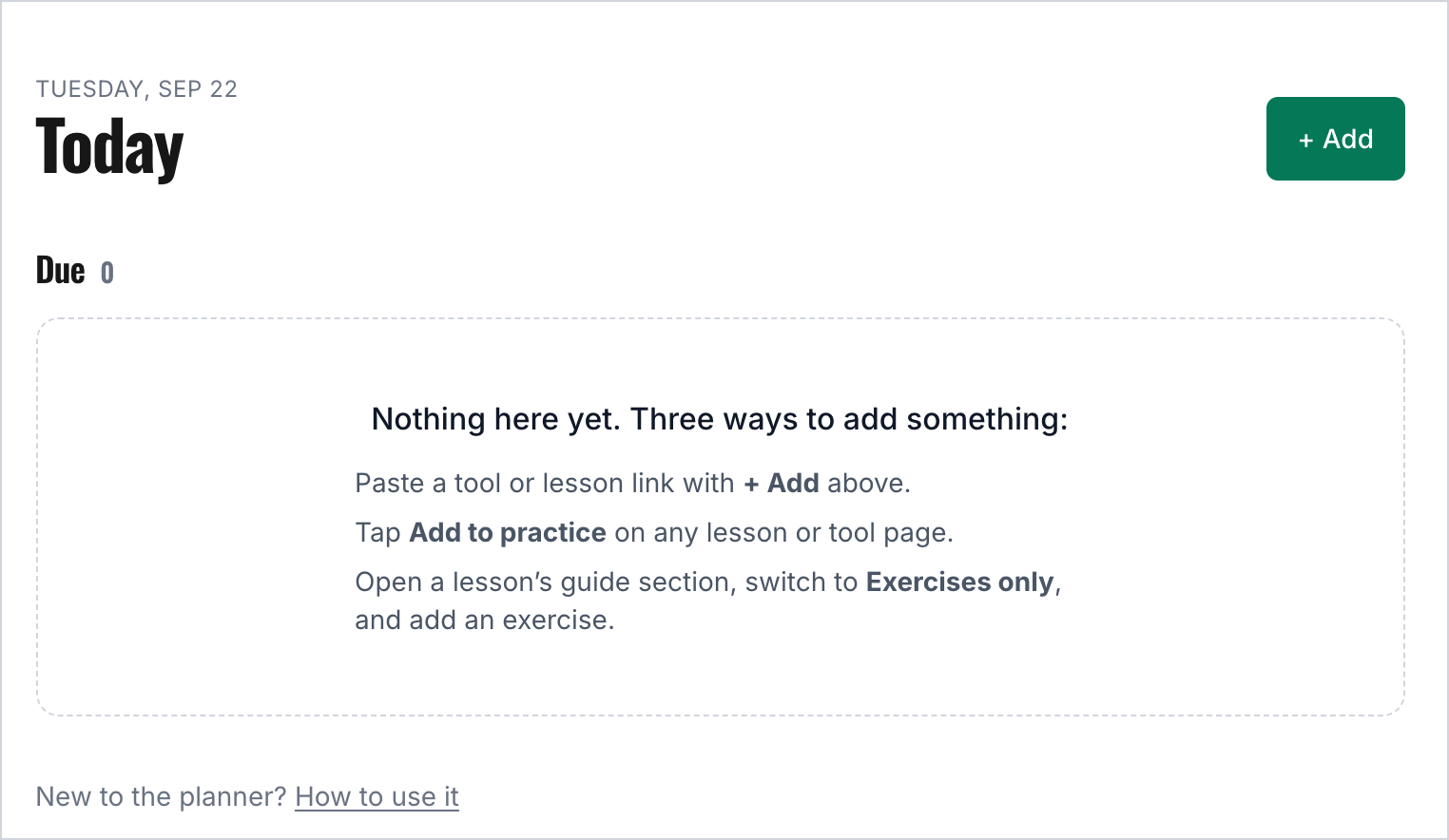
Today, before anything has been added.
3. Adding things to practice
There are five ways in. Most of them open the same Add to practice sheet, pre-filled as far as the planner can manage.
A whole lesson
On any lesson page you can watch, the bookmark-with-a-plus button beside the lesson title adds the full lesson as a practice item. I recommend using this if you want to rewatch a video. The check mark to its left is the usual Mark complete button.
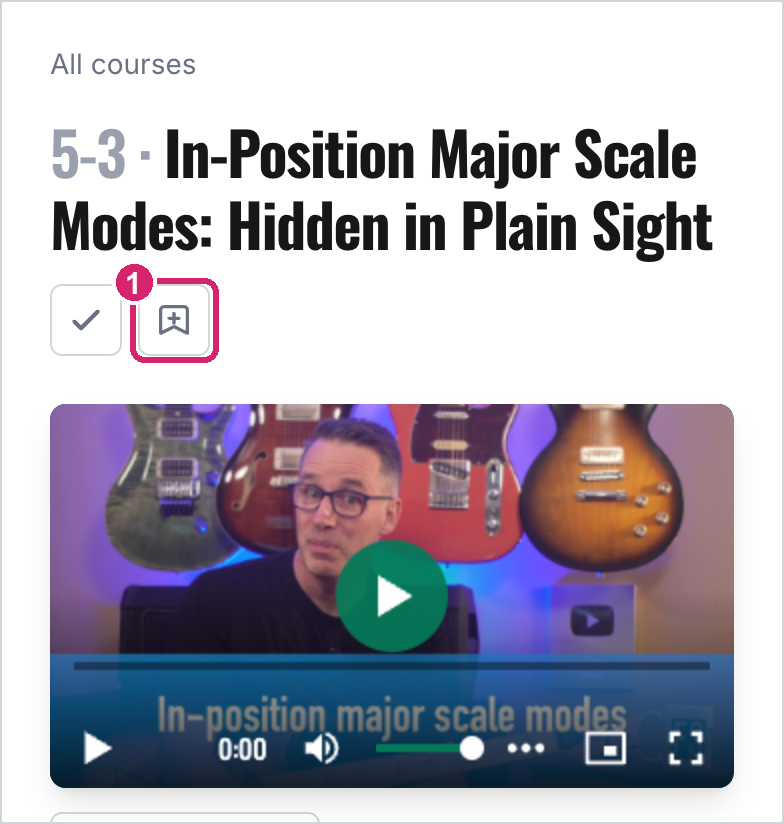
① Add to practice for the whole lesson.
Saved video moments work too. Each saved-moment chip under the video has a small + that adds that moment, so the item opens the video at that timestamp.
One exercise from a lesson
This is the one I'd use most. The course guide sections on lesson pages have a Full / Exercises / Memorize switch. Choose Exercises and the page shows only the exercises, each with its own Add to practice link underneath.
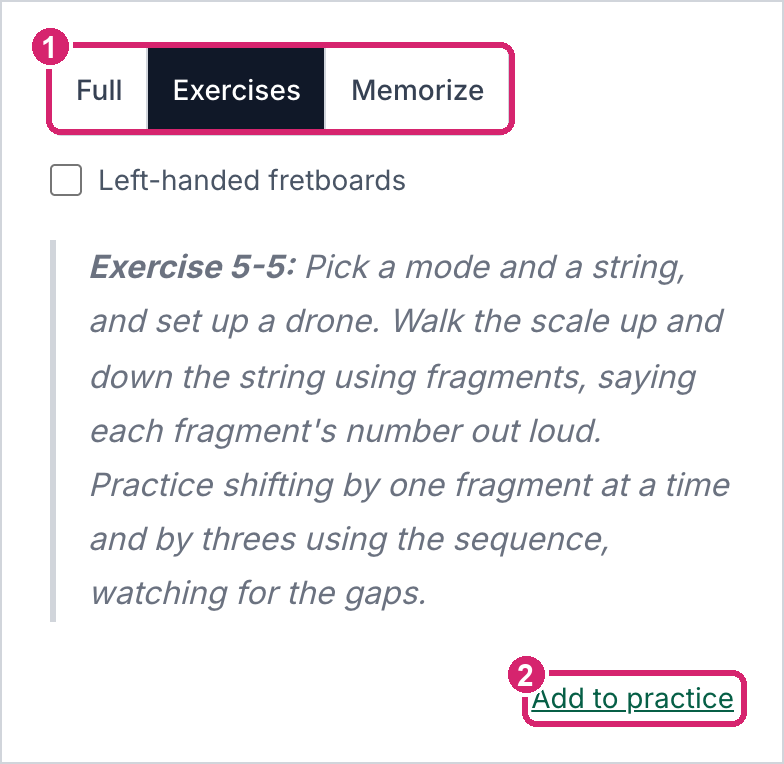
① Switch the guide section to Exercises. ② Add to practice under the exercise you want.
To take a whole lesson's exercises at once, tap Add all exercises beside the switch. A sheet lists every exercise in the lesson, ticked. Each one starts in the area the planner suggests for it, named beside it when they differ, and tapping an area chip puts them all under the same areas. Each becomes its own item, just as if you'd added it from its own link. Anything already in your practice starts unticked and says so.
The Course Guide chapters work the same way, if you'd rather read a module straight through. Each chapter has the same switch, an Add to practice link under every exercise, and Add all exercises, which lists the chapter's exercises lesson by lesson. An exercise you add from a chapter is the same item as one added from its lesson page: it opens on the lesson at that exercise, and the planner knows if you already have it. Exercises from a lesson you can't watch have no link.
The sheet opens with the exercise already filled in. The Link is where the item takes you when you practice it, and the small text on its right says what kind of link it is (here, a lesson that opens at exercise 3). The Title comes from the link; change it to whatever will make sense to you in a week. Areas say what kind of practice this is. The planner suggests one, and you can tap to add or remove areas, or type a new one. Planned is how many minutes you mean to spend on it. It's optional, but it gives you a countdown while you practice and a chime when time's up; without it the clock just counts up. For an exercise, the Description is the exercise text from the guide, so you can read it without opening the lesson.
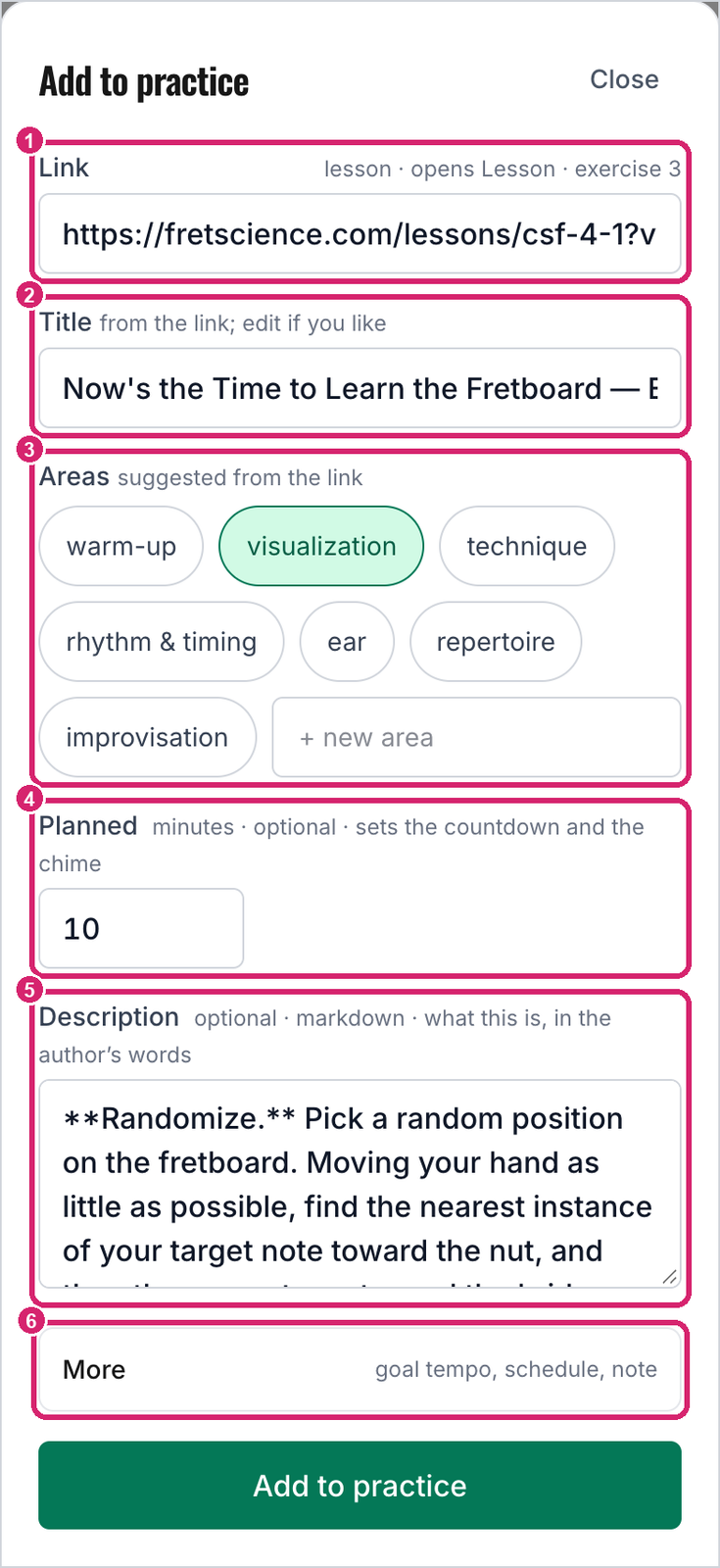
① Link. ② Title. ③ Areas. ④ Planned minutes. ⑤ Description. ⑥ More, for optional extras.
Under More are five optional fields. Tags are labels of your own, such as "3NPS", "Wednesday", or "bass". Tap a tag you've used before, or type a new one and tap Add. Tags let you focus a session on one group of items (section 5). Areas also steer which items rise up the list and the order a session runs in; tags do neither. Goal tempo is the tempo you're aiming for; when you log a tempo later, the planner also shows it as a percentage of this goal. Leave Schedule set to By rating for most things (the other options are explained later in this guide). Interval is how many days the item waits between practices to begin with. Leave it blank for the default in Setup, and your ratings stretch or shrink it from there; a new item is due the day you add it either way. Note is a reminder to yourself (fingering, what to listen for, where it usually goes wrong), and it shows at the top of the item every time you practice it.
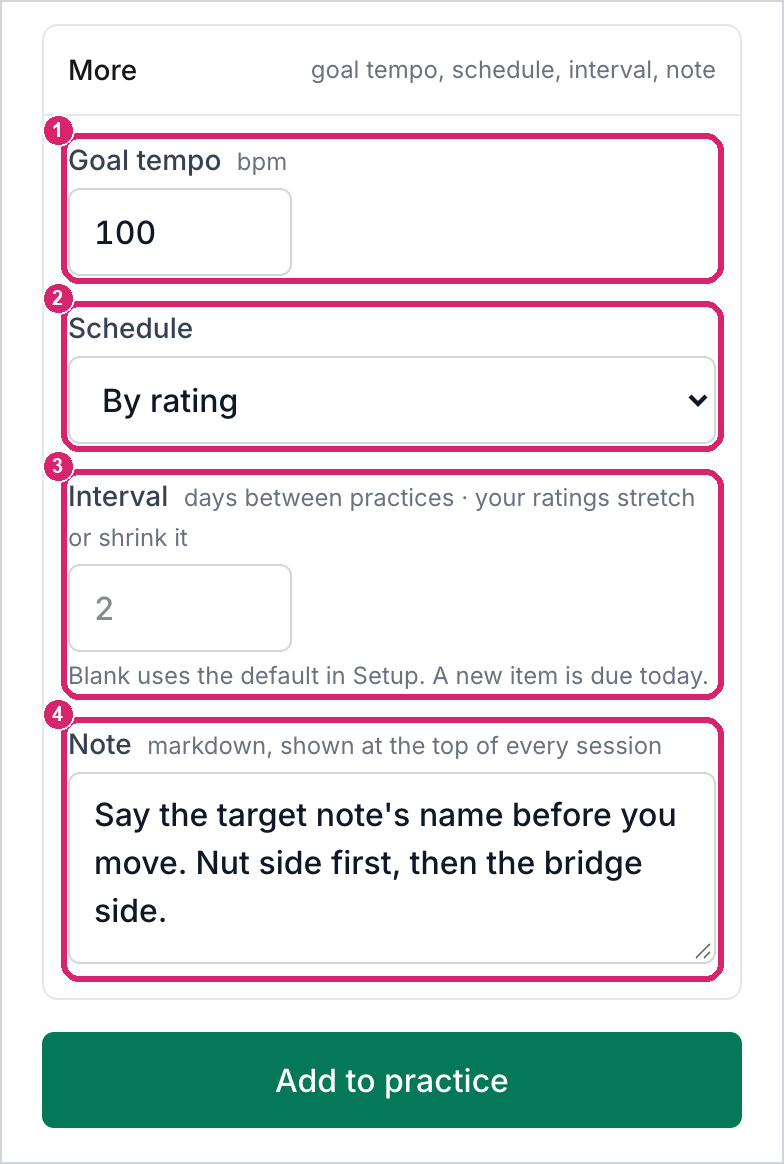
① Goal tempo. ② Schedule. ③ Interval, blank for the default. ④ Note.
Tap Add to practice and you're done.
A course exercise gets its number and a short name as its title, such as "1-4 Ex 1 · E by octave shapes" or "Ex 3-11 · Redo it in major", so you can tell your exercises apart at a glance on Today. You can rename it like any other item. Exercises you added before the short names arrived can switch to them in one go from the Courses tab (see Course by course).
If that link is already one of your items, the sheet says so under the link (Already in your practice, and the item's name), and the button becomes Add anyway. Open it takes you to the item you already have, and Restore it brings it back if you'd archived it. A second copy is fine when you mean it: the same exercise at two tempos can be two items.
From a course's exercise list
The Courses tab lists every exercise in Improv 101 and Complete Scale Fluency, and each one you haven't added yet has + Add at the end of its row. That adds it straight away, with no sheet, exactly as its own Add to practice link would. Course by course, in section 7, walks through the tab.
A tool at exact settings
Every practice tool on the site (Metronome & Drone, Jam Track Player, Trainer, Scale Visualizer, the chord tools, and so on) has an Add to practice button beside its Copy link button. It saves the tool with the settings you have right now, so the item will reopen the same track, tempo, scale, or setup each time you practice.
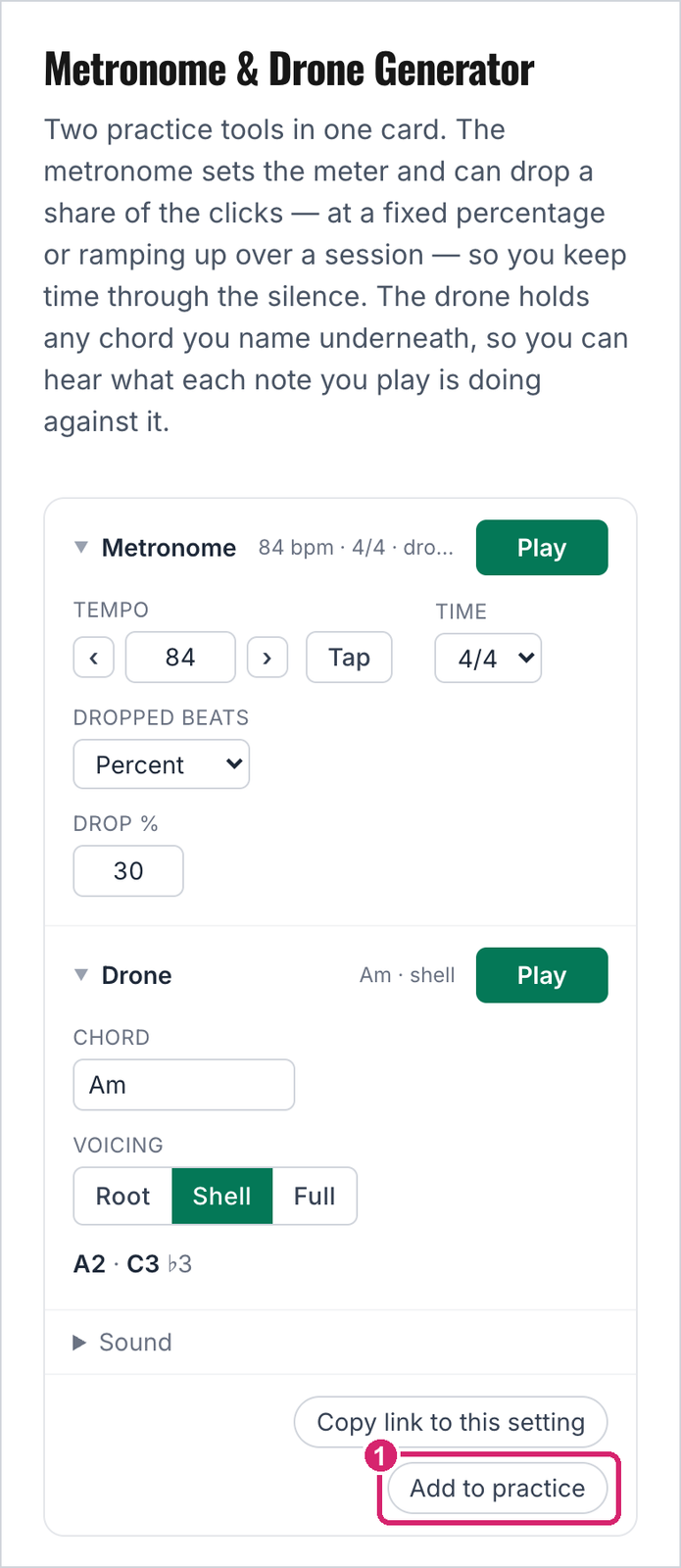
① Add to practice saves this metronome and drone exactly as set: 84 BPM, 30% of beats dropped, an Am shell drone.
Pasting a link, or adding something with no link
The + Add button on Today and Items opens an empty sheet. Paste any Fret Science lesson or tool link, a YouTube link, or any other web address, and the planner works out what it is. Here, a pasted metronome link becomes a daily warm-up with a goal tempo of 120 and 5 planned minutes. The planner suggested rhythm & timing for a metronome link; this drill is a warm-up, so it goes under warm-up instead.
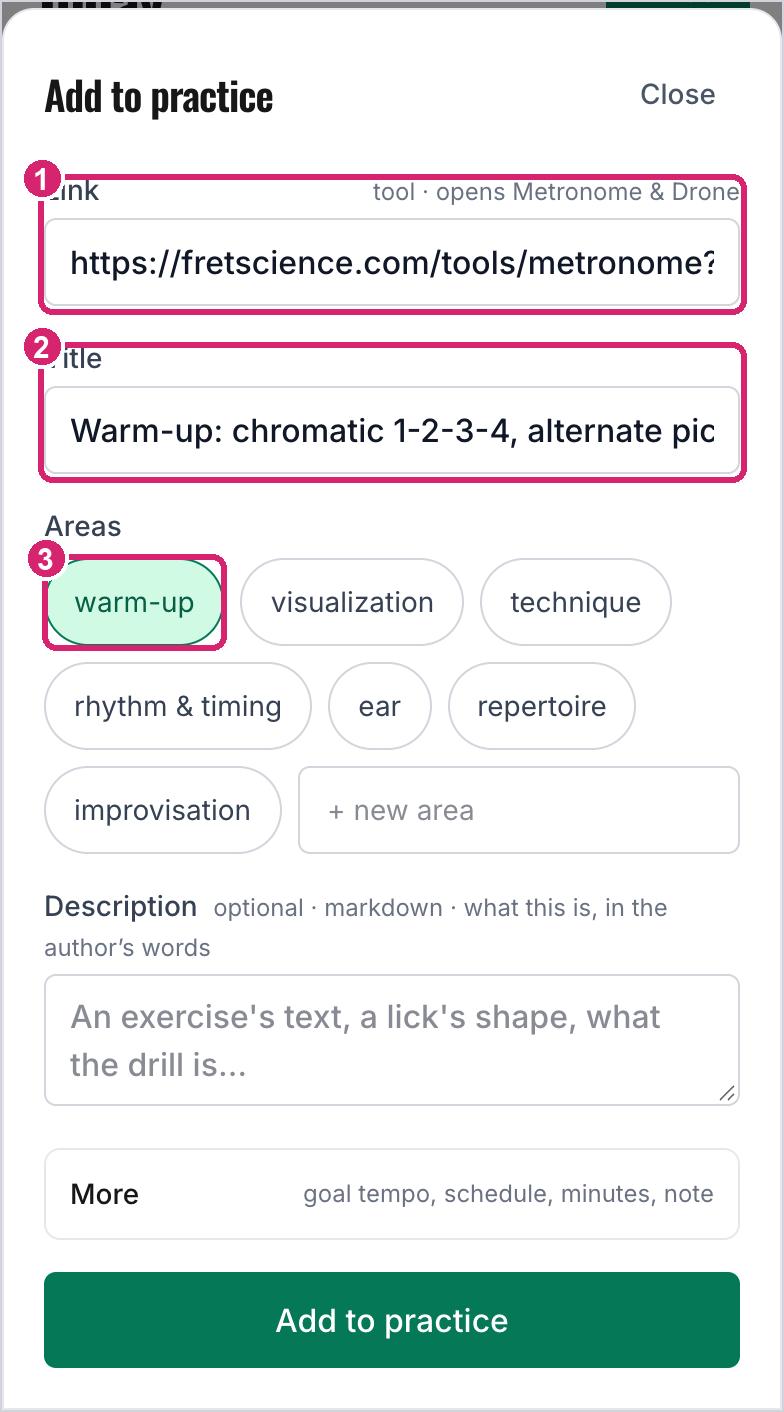
① The pasted link, recognized as a tool that opens Metronome & Drone. ② The title, rewritten to say what the drill actually is. ③ Filed under warm-up.
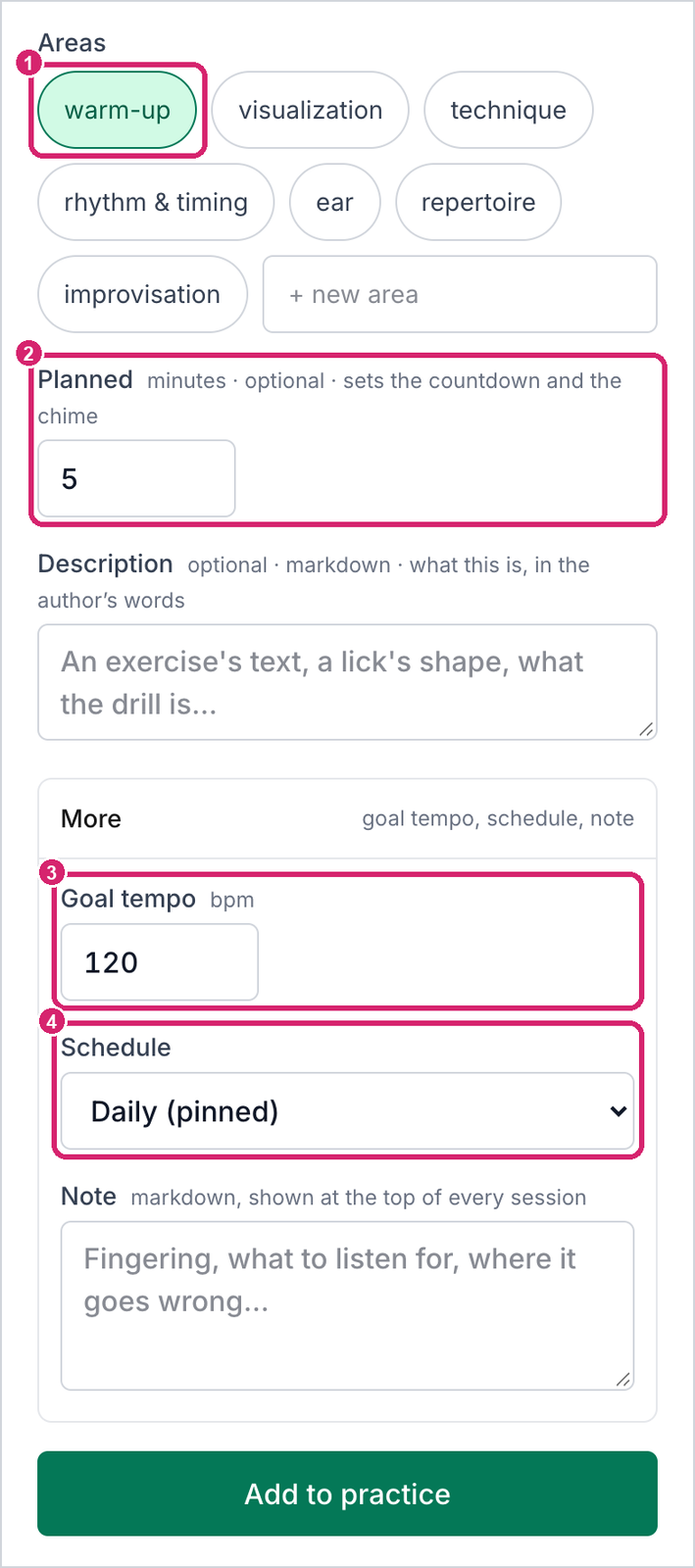
① The warm-up area. ② 5 planned minutes. ③ A goal tempo of 120. ④ Daily (pinned): due every day, whatever the rating.
A YouTube link can start partway through a video. Add t= and a time to the link (&t=1m35s, say), or on a computer use YouTube's Share → Start at. The planner names the item "YouTube clip at 1:35", and opening it starts the video there.
Some things you'll want to practice may have no link at all: a song from a book, something a teacher gave you, an ear drill. Leave the link empty and just give it a title and an area. Under More, there's a Source field for things like "The Real Book, p. 37".
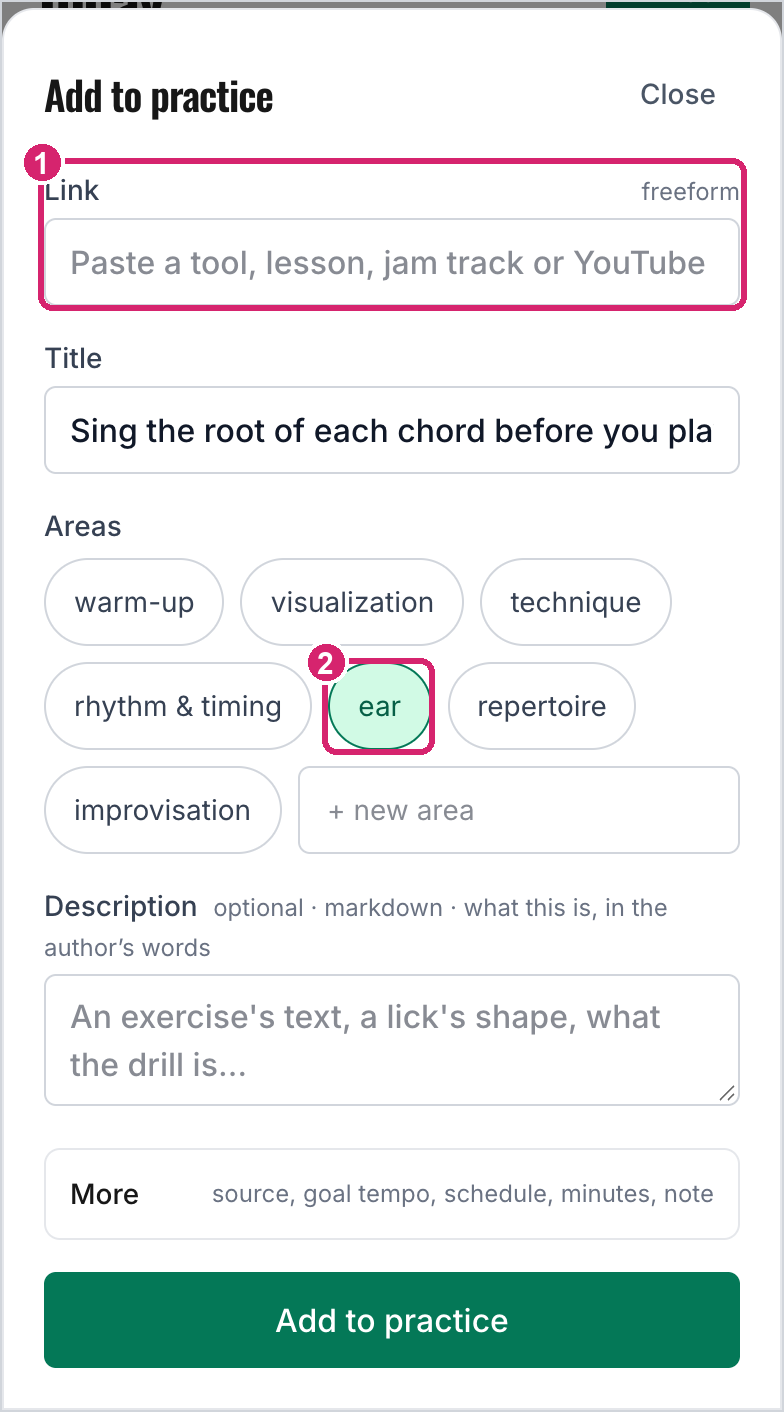
① No link, so the item is freeform. ② Filed under the ear area.
4. Today
Today is the planner's home screen. It shows what's due now and what's coming up in the next few days.
Across the top, the area strip lists every area you use, with the number of days since you last practiced it. An area turns amber after a few days and red once it has gone quiet, and within each area the planner nudges items from a quiet area up the list so nothing gets forgotten. Start with what's due starts a session with everything that's due; the estimate in brackets adds up the planned minutes. Pick items for a session… lets you choose exactly what to practice instead.
Each item carries its planned minutes if you set any, schedule pills, and dots for your last few ratings, running from orange (rough) to green (clean). The first pill says how often the item comes back: "every 2d" is the gap your ratings have reached so far, and "daily" marks a pinned item. The next says when it's due ("due today", "2d overdue", or "in 3d"), and "area quiet" appears when its area has been neglected. An item you haven't practiced yet says new. Tap any item to open its page, where you can practice it on its own (section 6).
The Due list, and the session it starts, run in area order: warm-up first, then visualization, technique, rhythm & timing, ear, repertoire, and improvisation. Within an area, the most overdue item comes first. You can change the area order (section 8), and the Due list follows.
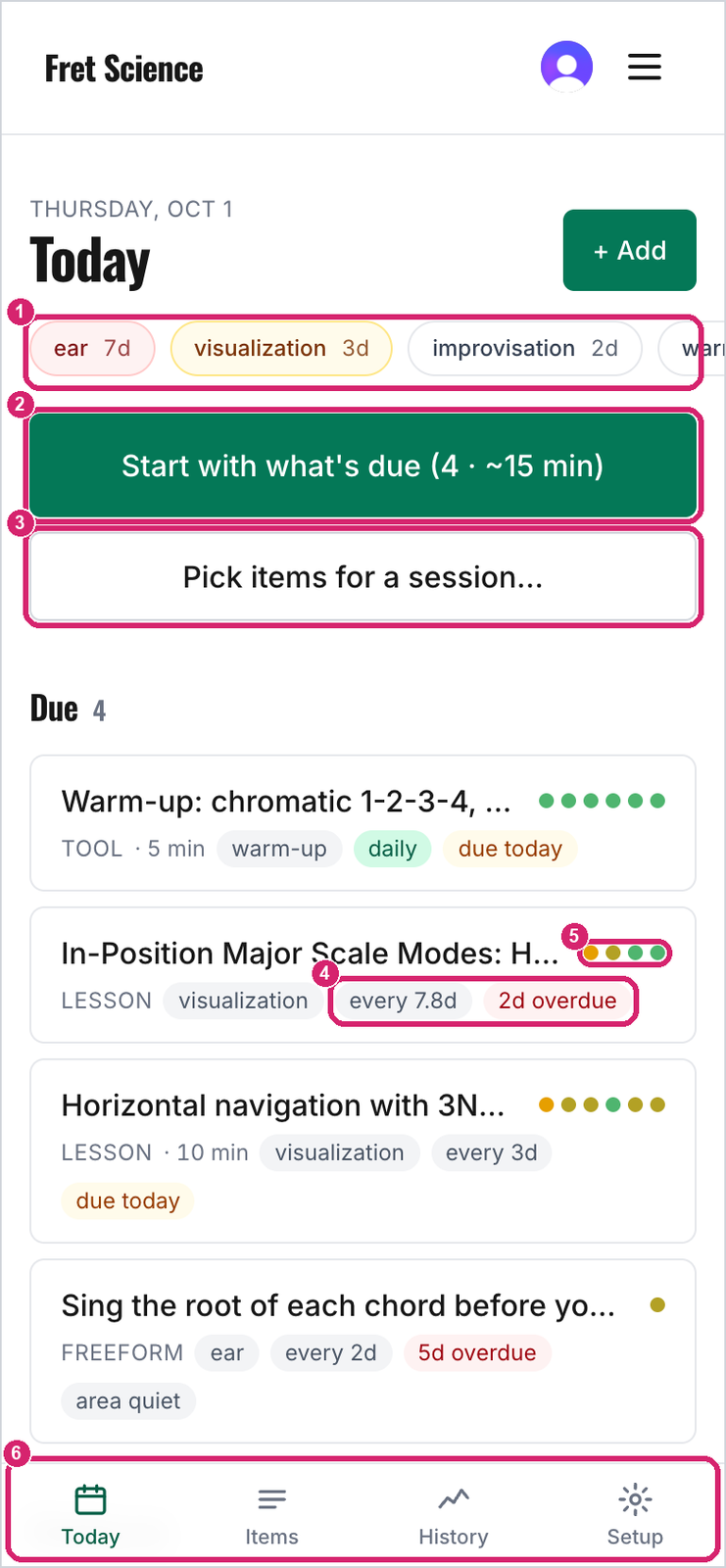
① Area strip. ② Start with what's due. ③ Pick items for a session. ④ Schedule pills. ⑤ Recent ratings. ⑥ The planner's tabs (at the top on a computer).
Your own order
If you'd rather run the Due list in an order of your own, tap Reorder beside the Due heading (it appears once two or more items are due). The list turns into numbered rows with a handle on each; drag an item by its handle to move it, then tap Done. On a computer you can also tab to a handle and use the up and down arrow keys.
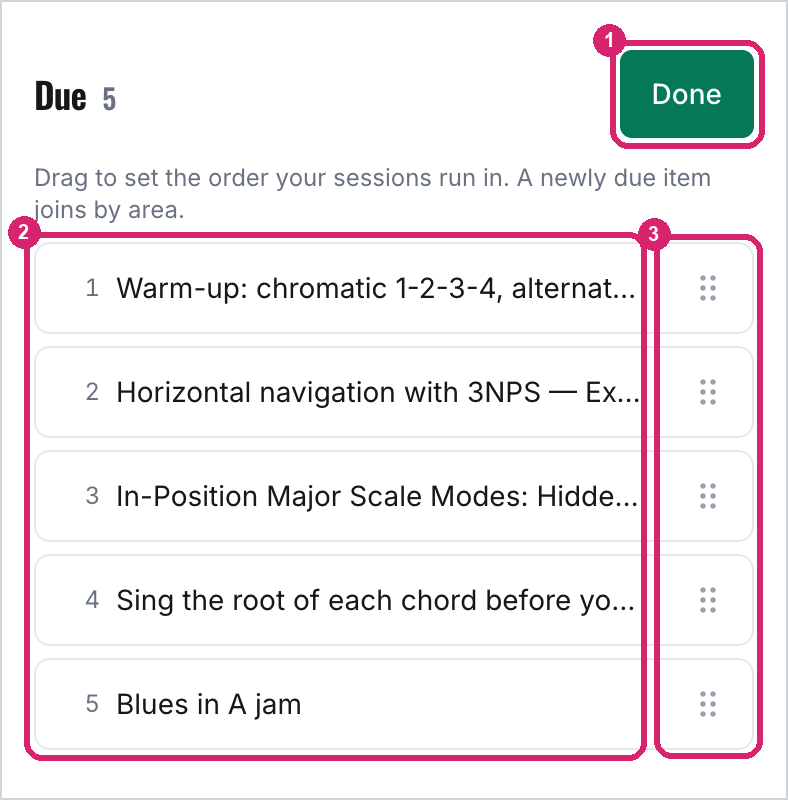
① Done returns to the usual list. ② The order your sessions run in. ③ Drag handles.
The planner remembers your order. Start with what's due and the session picker follow it, and items keep their places when they come due again. An item you haven't placed yet, such as one you just added, joins where its area puts it, and you can drag it from there. To go back to area order, tap Reorder, then Use area order below the list. Your order changes only the running order: an item still comes due on the same day.
5. A practice session
This is the everyday routine: open Today, start a session, and work through the list.
Choosing what goes in
Start with what's due takes everything due, in the Due list's order (area order, or your own). Pick items for a session… opens a picker with two views. Choose has quick picks (What's due, One per area for a balanced short session, or Everything) and a Clear button; tap items to tick or untick them.
Above the quick picks, Focus narrows the picker to one course, one area, or one tag, and each choice says how much of it is due ("3NPS · 3 of 5 due"). The courses need no setup: any lesson or exercise from Improv 101 or Complete Scale Fluency already counts toward its course. With a focus set, the list shows only those items and the quick picks choose from them, so What's due gives you the 3NPS items that are due and nothing else. It's the way to spend a short session on one thing. Picking a focus starts the ticks over from what's due in it. The picker always opens on Everything, and Focus appears once your items span more than one course, area, or tag.
A tag for a topic works better with the schedule than one for a day of the week. An item tagged "Wednesday" still comes due by its ratings, so on a Monday it can sit in Due waiting for Wednesday.
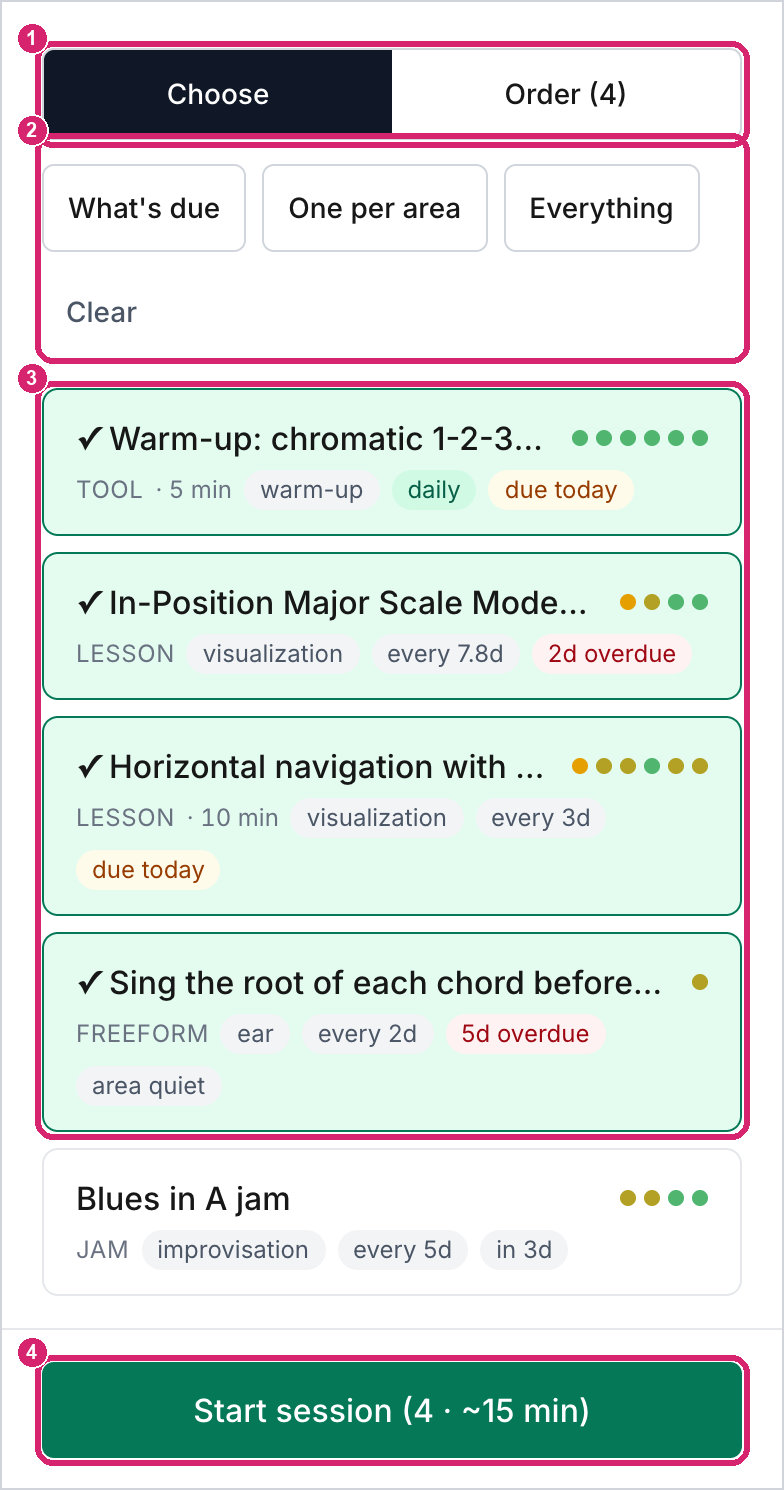
① The Choose and Order views. ② Quick picks. ③ Ticked items. ④ Start session, with the number you picked.
Order shows just the ticked items, numbered in the order the session will run. Drag an item by its handle to move it. Quick picks fill in the Due list's order, and an item you tick by hand joins at the end. An order set here is for this session only; to change it for every session, reorder the Due list on Today.
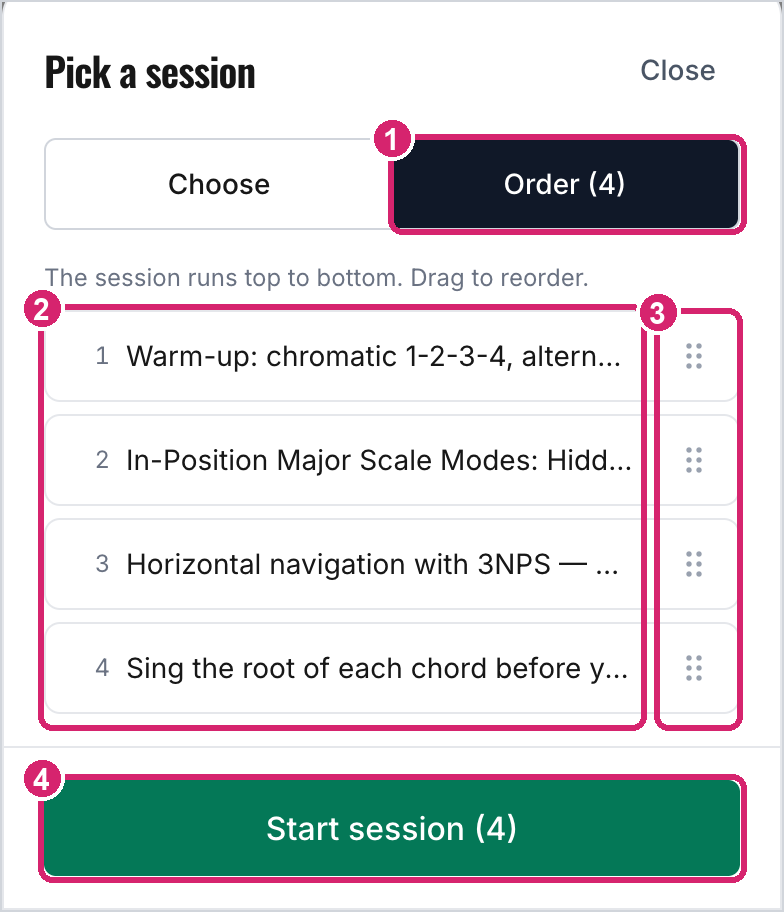
① The Order view. ② The session, top to bottom. ③ Drag handles. ④ Start session.
Tuning up
A practice session should start with a guitar in tune, so the planner can open the tuner for you. When the session starts, the first item's page opens with the tuner over it. Play one open string at a time: the note name shows what you're playing, and the needle turns green when you're within 3 cents. Tap a string's button to hear its note if you'd rather tune by ear, and tap it again to stop. When you're done, tap Tuned, start. The item's clock starts then, so tuning never counts as practice.
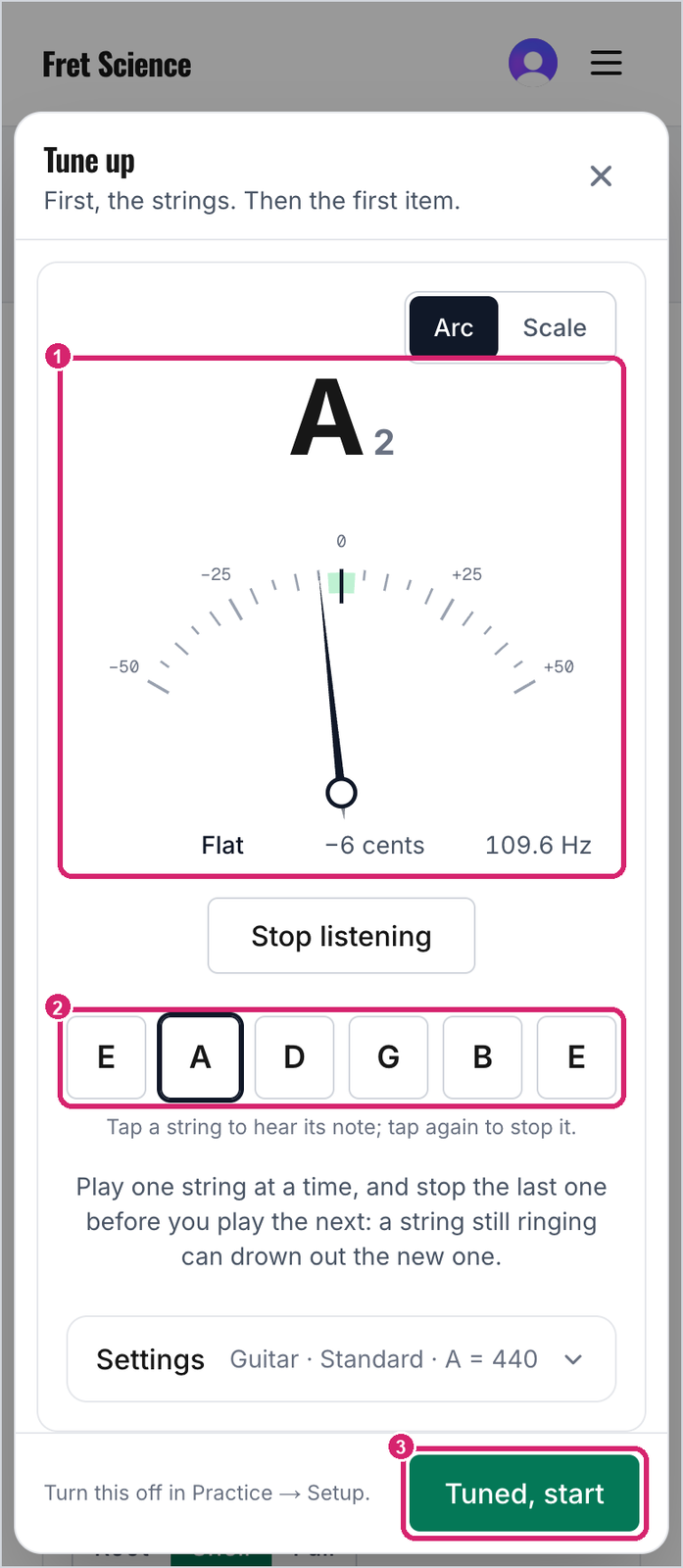
① The note you're playing, and how far off it is. ② Tap a string to hear its note. ③ Tuned, start puts the tuner away and starts the item's clock.
The tuner listens through your phone's or computer's microphone, and the first time, your browser asks for permission. Until you allow it, the tuner says it's waiting for the microphone. The sound stays on your device and is never recorded. Take earbuds out before you tune: with AirPods connected, a phone listens through their microphone, which barely hears the low strings.
If you started practice sessions before the tuner arrived, this starts switched off, so nothing changed under you. Turn on Tune up first in Setup to have it.
You can also open the tuner in the middle of a session: open the session bar's details and tap Tuner. While it's open, the item's clock stops, and anything playing on the page (a lesson video, a jam track, the metronome) pauses so the tuner can hear the guitar. Tap Done to go back to the item, and the clock carries on from where it stopped.
The tuner opens the same way when you practice one item on its own. Tap Start on the item's page, or ↗ Open, and the tuner comes up first; the clock starts when you close it. Once you've tuned, the planner won't ask again for two hours, so the next item, or a session started right after, goes straight to practice. The item's page has its own Tuner button too, and the clock stops while it's open.
The same tuner has its own page, the Guitar Tuner, with alternate tunings, bass, and a choice of an arc meter or a sliding scale.
The session bar
When a session starts, the planner takes you to the first item's page: the lesson, the exercise, the jam track, the metronome. A slim session bar rides along at the top of the page while you practice, so you never have to leave the page you're playing from. It shows which item you're on, its title, a clock that starts when the item comes up (or waits for you to tap Start, if you'd rather; see Starting the clock yourself), and the five ratings: Rough, Shaky, Getting there, Solid, and Clean & fluid. A thin line along the bottom of the bar fills in as you work through the session.
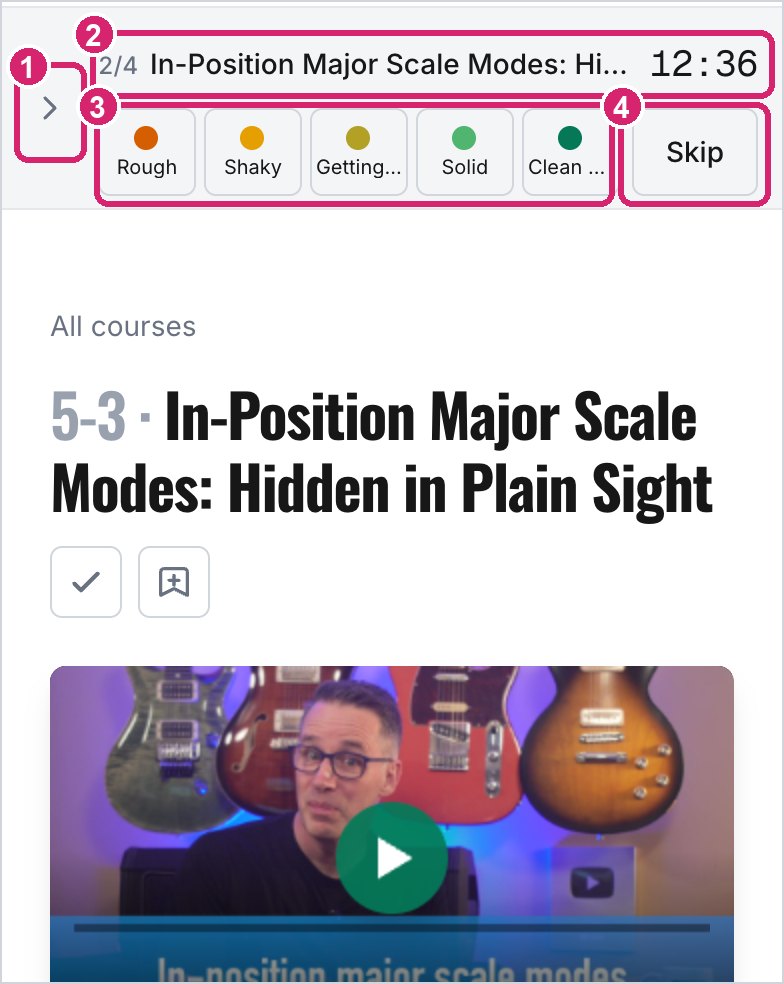
① Opens the bar's details. ② Item 2 of 4, its title, and the clock. ③ The five ratings. ④ Skip moves on without logging anything.
When you're done with the item, tap the rating that matches how it went, and the Skip button becomes Next. Next logs the rating with the time on the clock and takes you to the next item's page. On the last item it says Finish. Tap a lit rating again to clear it.
The bar only rates the item whose page you're on. If you wander off mid-item (to a tool the lesson mentions, say, or back to an item you just skipped), it folds to one line naming the current item, with Go there to return to it and End session.
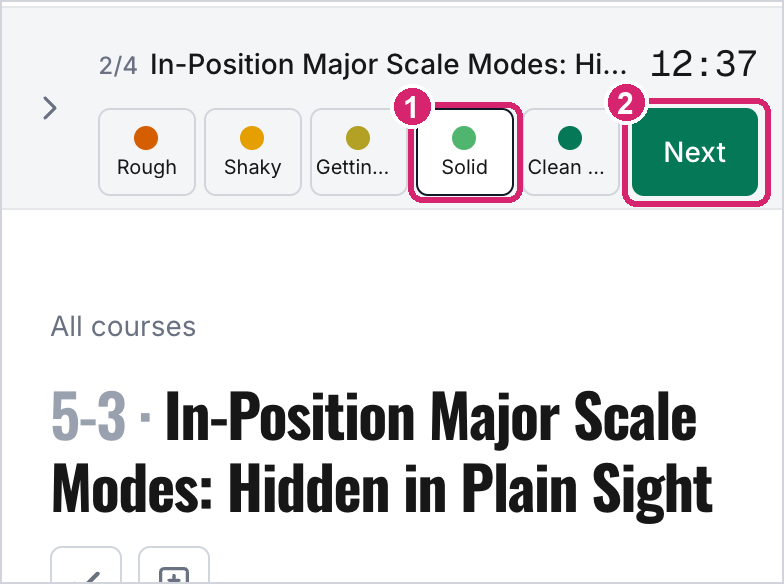
① Solid picked. ② Next logs it and moves on.
What the ratings mean, roughly:
| Rating | Meaning | Comes back |
|---|---|---|
| Rough | Needs a lot of work | much sooner |
| Shaky | Got through it, barely | sooner |
| Getting there | Mostly right, not yet easy | about the same |
| Solid | Reliable, a few rough edges | later |
| Clean & fluid | Felt and sounded great | much later |
Be honest rather than generous. The rating is the only thing the schedule has to go on.
Tempo, notes, and the clock
Tap the arrow to open the bar's details. None of this is required; a rating on its own is a complete log. Last time shows your previous rating and note for the item, so you pick up where you left off. You can type planned minutes to get a countdown, restart the clock if you got interrupted, or Pause the session. Tempo is what you managed today, in BPM or as a percentage of full speed. Note is what to try next time, and it shows up as "Last time" when the item comes around again. Done lists the items already behind you, and Up next the ones still to come; drag one by its handle to practice it sooner or later. Tuner opens the tuner (see Tuning up above). End session stops early and keeps everything you've already logged. If you've picked a rating for the current item but haven't tapped Next, it asks first: Log it and end logs that rating too, and End without logging leaves it out.
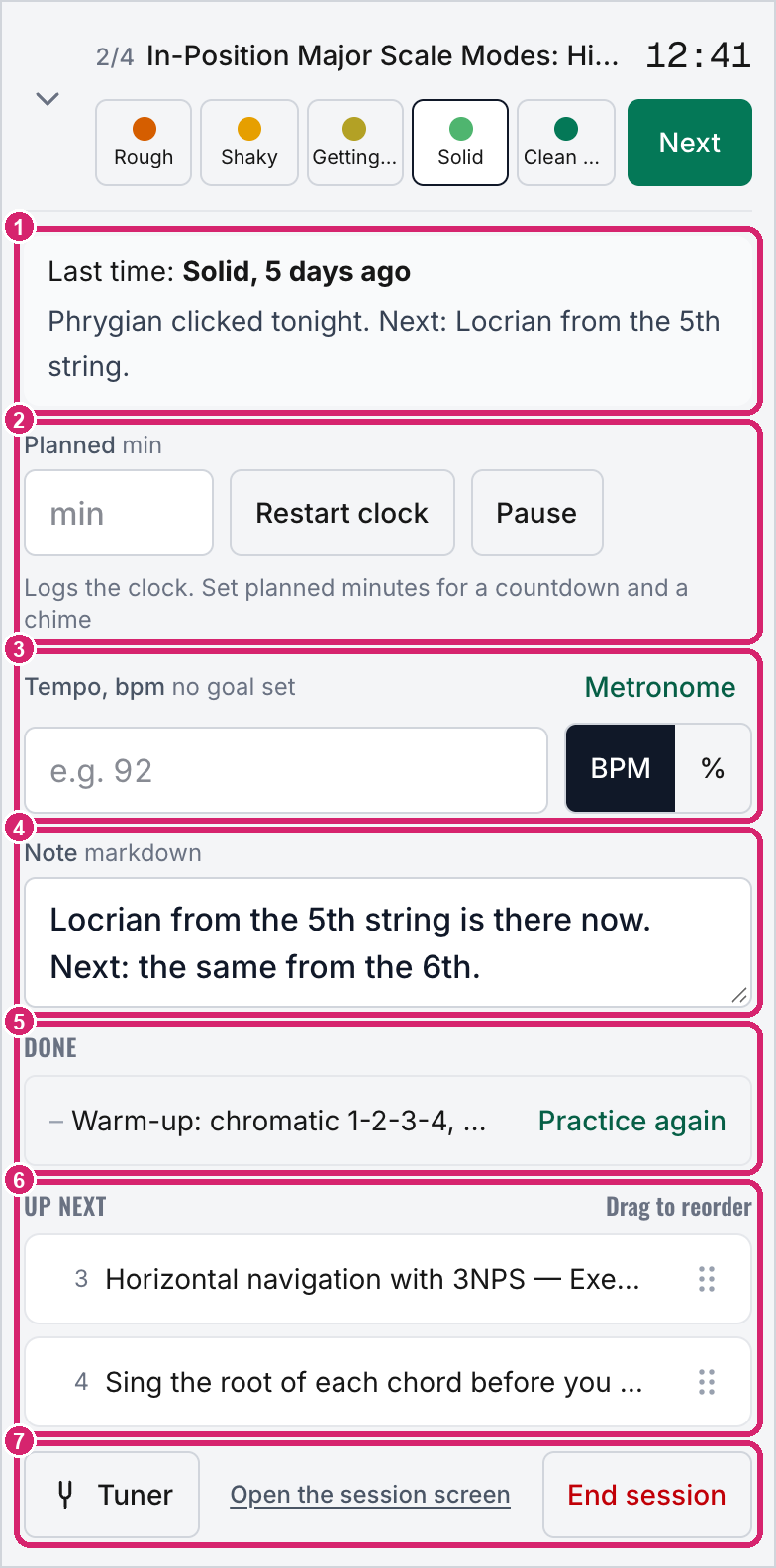
① Last time. ② Planned minutes, Restart clock, and Pause. ③ Tempo, with the Metronome. ④ Note. ⑤ Done, with Practice again. ⑥ Up next. ⑦ The tuner, the session screen, and End session.
With a goal tempo set, the planner shows today's tempo against it:
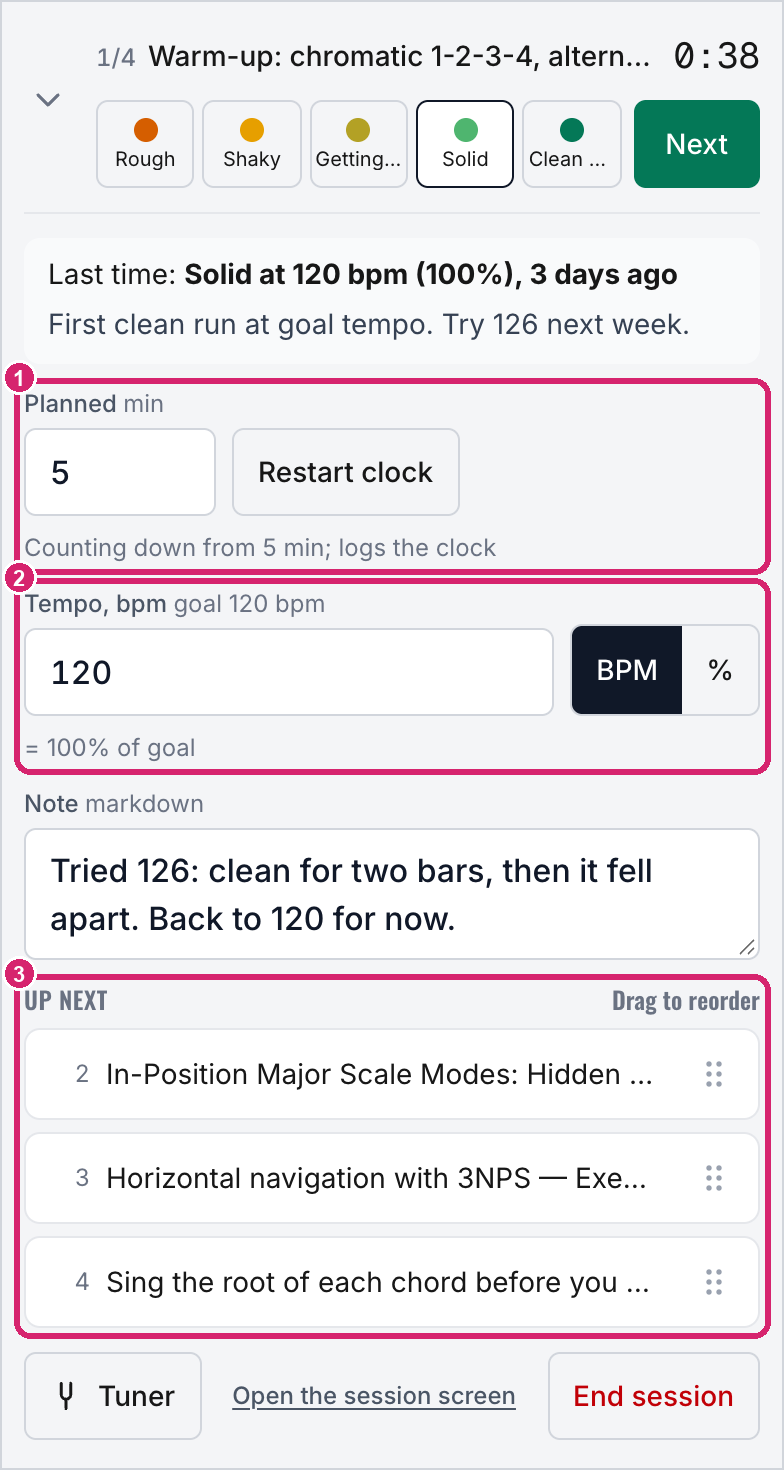
① Five planned minutes, counting down. ② 120 BPM logged, shown as 100% of the goal. ③ Up next: the other three items in this session.
The bar follows you onto lesson pages as well. For an exercise item, the page opens scrolled to that exercise, with any metronome or drone from the guide right below it.
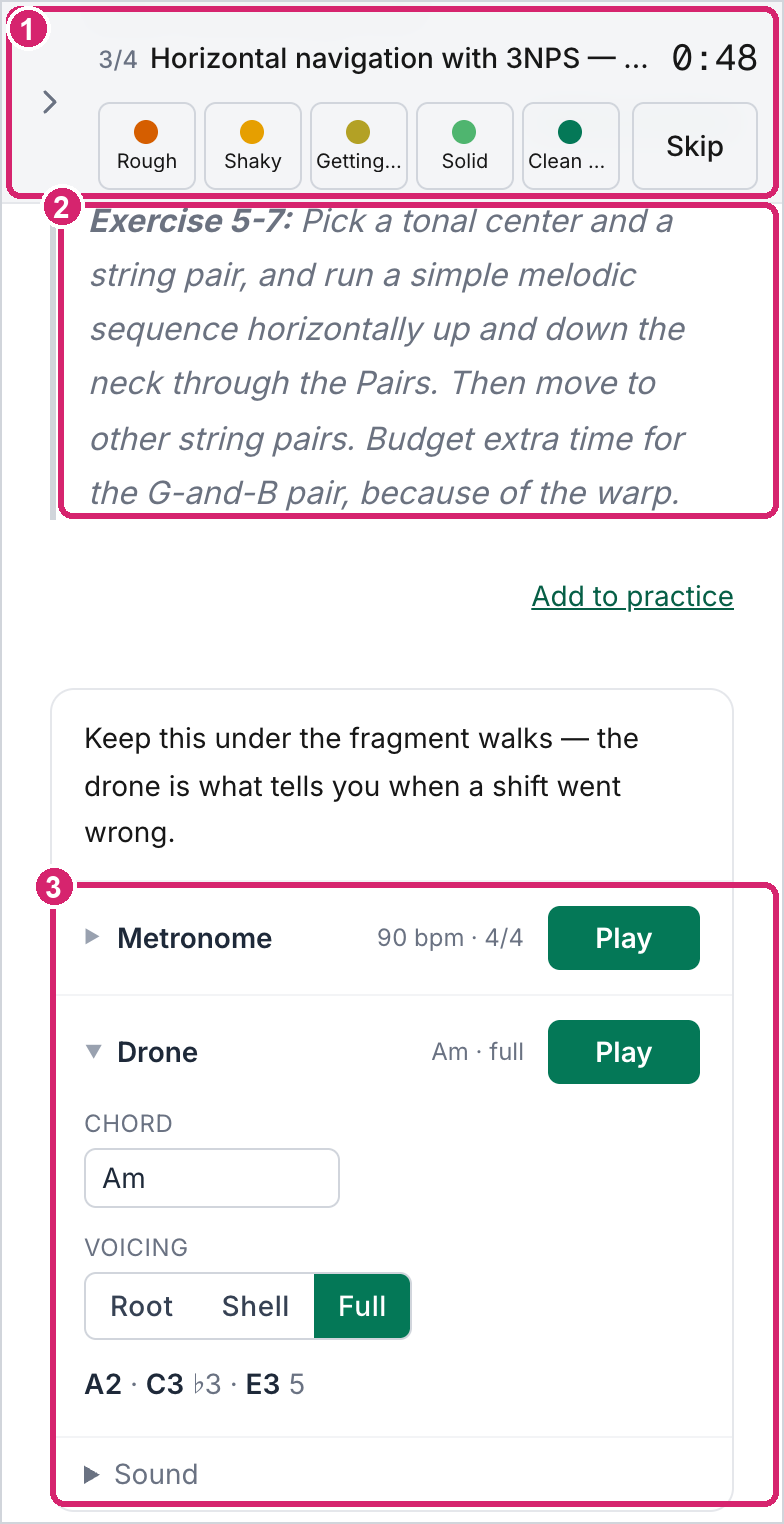
① The session bar on item 3 of 4. ② The exercise the item points at. ③ The guide's own drone for this exercise, ready to play.
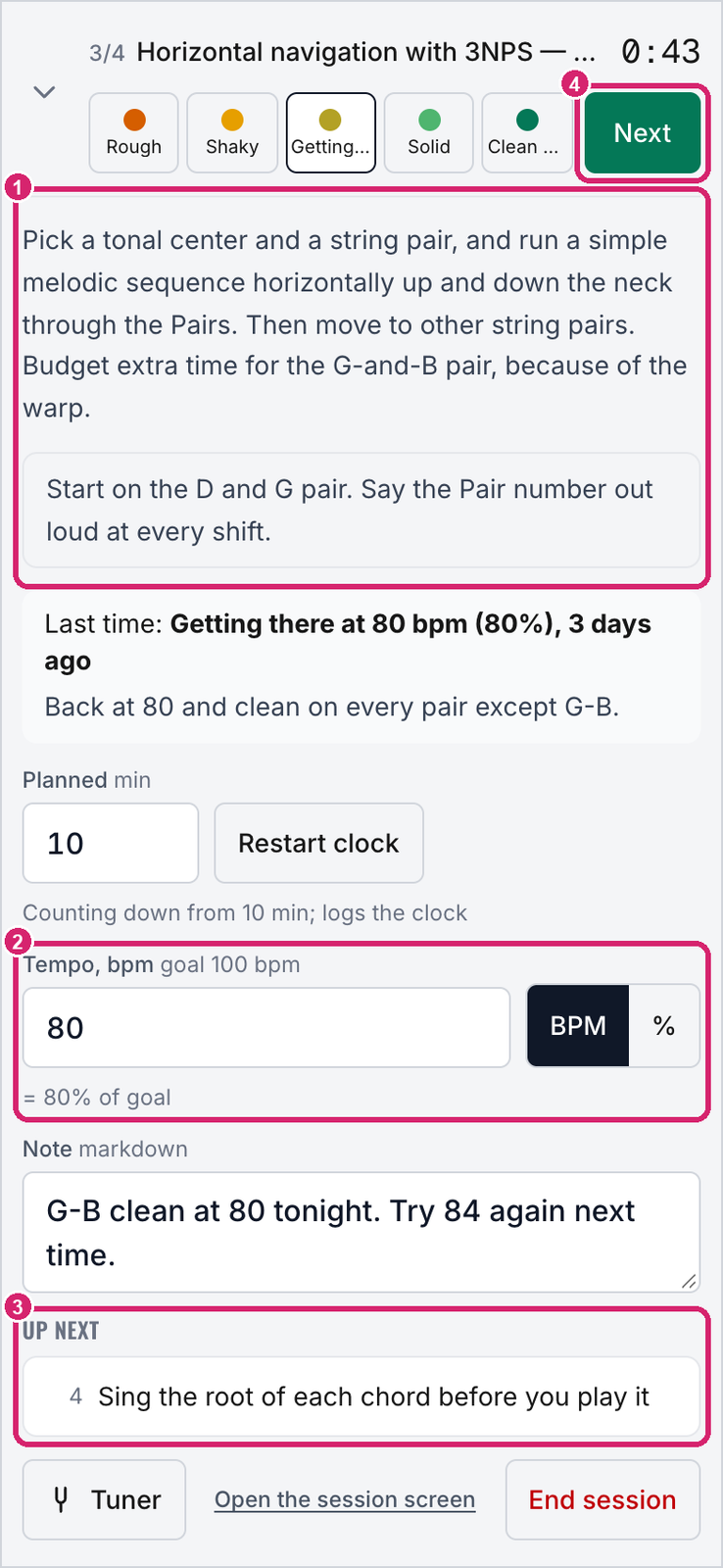
① The exercise text and your own note, both in the bar. ② 80 BPM logged, shown as 80% of the 100 BPM goal. ③ The one item left. ④ Next.
A metronome while you play
Metronome, beside Tempo in the bar's details, opens the Metronome & Drone over the page you're on, set to the item's goal tempo (or the tempo you last used on the metronome). The item's clock keeps running. Close it while it's playing and the click carries on, with a small Metronome · Show · Stop pill in the corner, so you can see the exercise and rate it while it plays. Stop closes it. It plays one sound at a time like every player on the site, so starting a lesson video or a jam track stops it. The same button is on an item's own page.
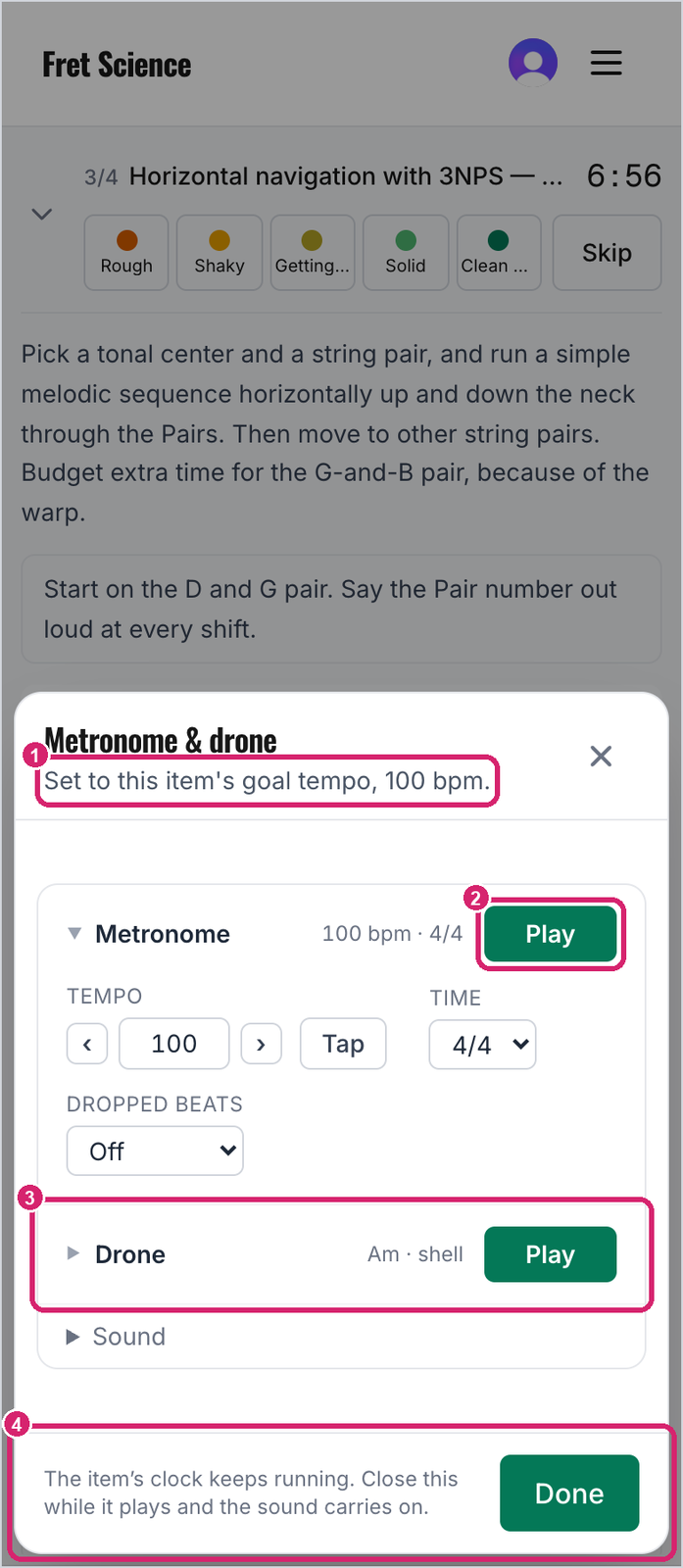
① Set to the item's goal tempo. ② Play starts the click. ③ Tick Drone to hold a chord under the click. ④ The item's clock keeps running, and closing this while it plays keeps the sound going.
Pausing
Pause stops the session's clock until you tap Resume, which stays in view in the bar while you're paused. Paused time never counts. Today shows the session as paused, and its Resume › picks up where you left off. If you leave the page for five minutes or more while the clock is running, the bar asks when you come back: Away 23 min. Was that practice? Tap Keep it if you were practicing (along with a YouTube video, say), or Take it off if you weren't. A session stays open until twelve hours after you last started an item, paused, or resumed.
Starting the clock yourself
Normally an item's clock starts the moment the item comes up. If you'd rather get set first (find the exercise, set up the metronome, pick up the guitar), turn on Item clock in Setup. Each item then comes up with its clock at zero and the bar saying Ready when you are. The clock starts when you tap Start. Tap Start when you're ready to play. An item reached by Skip, Next, or Practice again comes up waiting too, and Resume › on Today takes you back to a waiting item without starting its clock. Two buttons still start the clock straight away: Restart clock, and the tuner's Tuned, start. The switch is saved on your account, so it works the same on every device.
Going back to an item
Practice again, beside each item in the Done list, brings it back for another pass. It becomes the current item with a fresh clock, and once you've logged or skipped it, you carry on from where you were. The summary offers the same before you finish.
Items without a page
A freeform item or a book page has no site page to visit, so the planner shows it on its own session screen instead: the item itself, with its description, your note, and Last time, under the same session bar that rides on tool and lesson pages. Rate it and tap Next in the bar, as you would anywhere else. The bar's details hold Pause, tempo, Metronome, note, Done list, and Up next list.
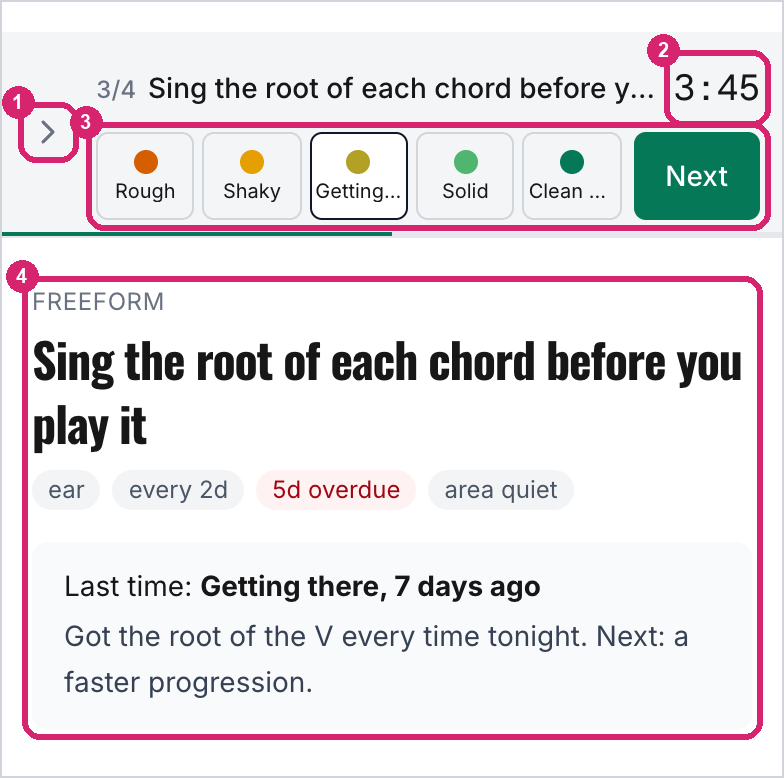
① Opens the bar's details, the same as on any page. ② The clock. ③ Getting there picked; Next logs it and moves on. ④ The item, with how it went last time.
The summary
When you finish, you get a summary of the session: how many items you logged, the total time, and one line per item with its rating, tempo, time, and when it comes back. Tap a line to open that item. Under the list, Another pass before you finish? lets you practice any item again before you end the session.
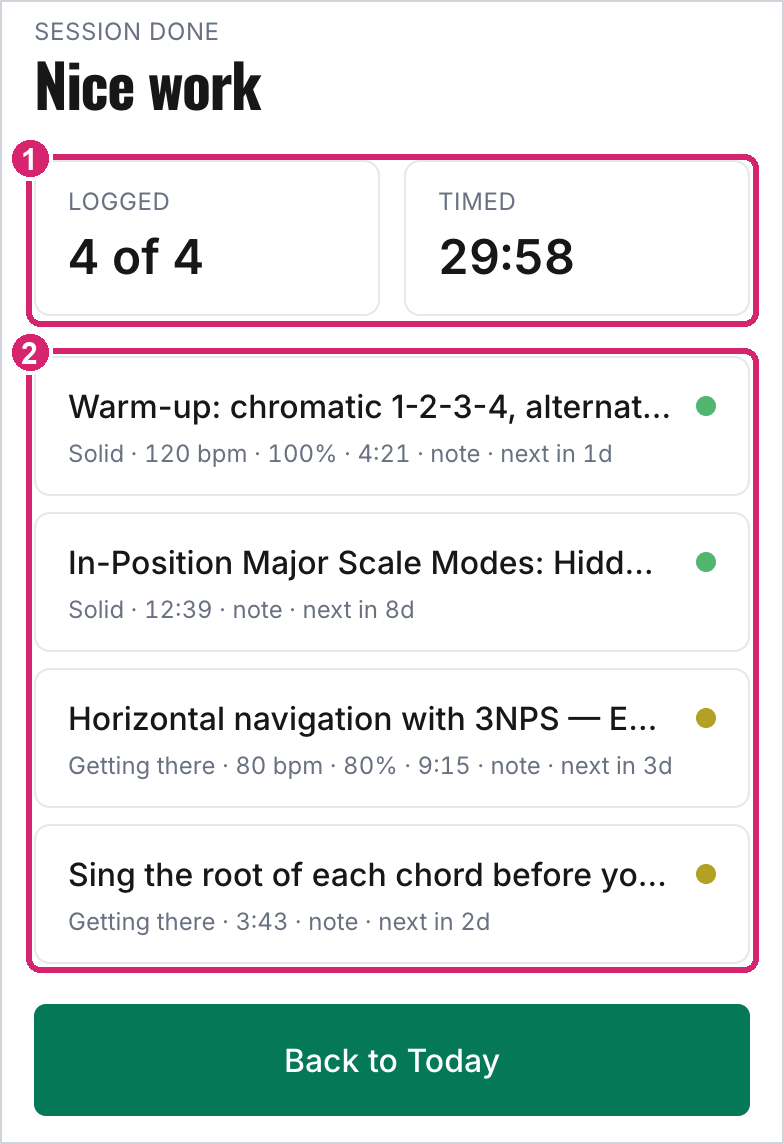
① Items logged and total time. ② One line per item, ending with when it's next due.
Back on Today, the due list is empty and everything you practiced has moved to Coming up. You can still tap any item to practice it anyway.
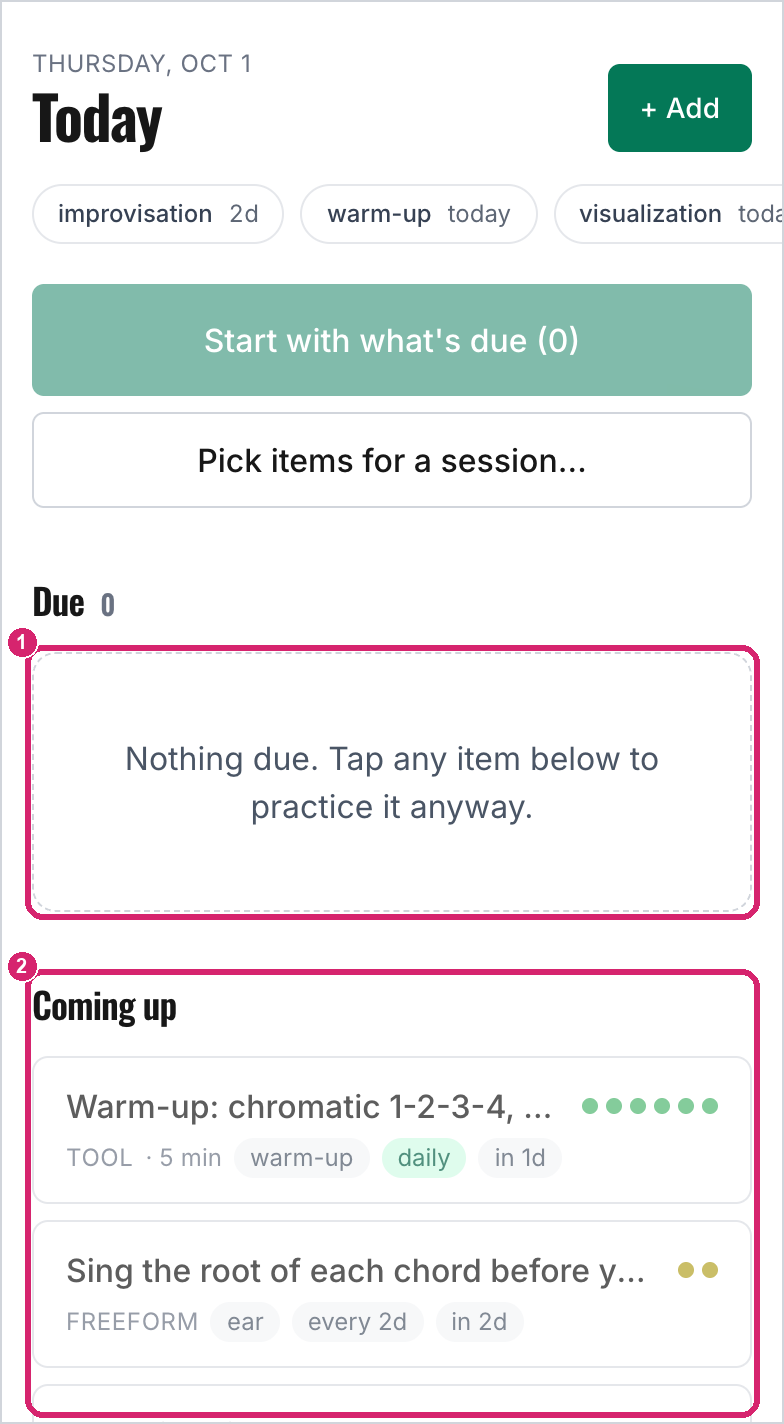
① Nothing due. ② Coming up, with when each item is next due.
6. Practicing one item on its own
You don't need a session. Open any item from Today or Items, practice it, and log it from its page. The page shows the description (for an exercise, its text), your note, an Open button that takes you to the lesson, tool, or link, and your last rating, tempo, and note. After you pick a rating, the button at the bottom changes from "Pick a rating to log" to Log. Metronome, beside Tempo, opens the Metronome & Drone over the page, as in a session.
The clock waits for you. It starts when you tap Start, or when you tap Open to go and practice, so opening an item just to read or edit it doesn't start anything. After Open, the time you spend on the lesson or tool counts even though you've left the item's page, until you come back and log, pause, or restart. Pause keeps the time so far, and Restart sets it back to zero. If the clock never runs, the log uses your planned minutes.
When you log, the page shows when the item comes back ("Logged ✓ · next in 4d"), with Next due to open the next item on Today's list (when there is one) and Back to Today.
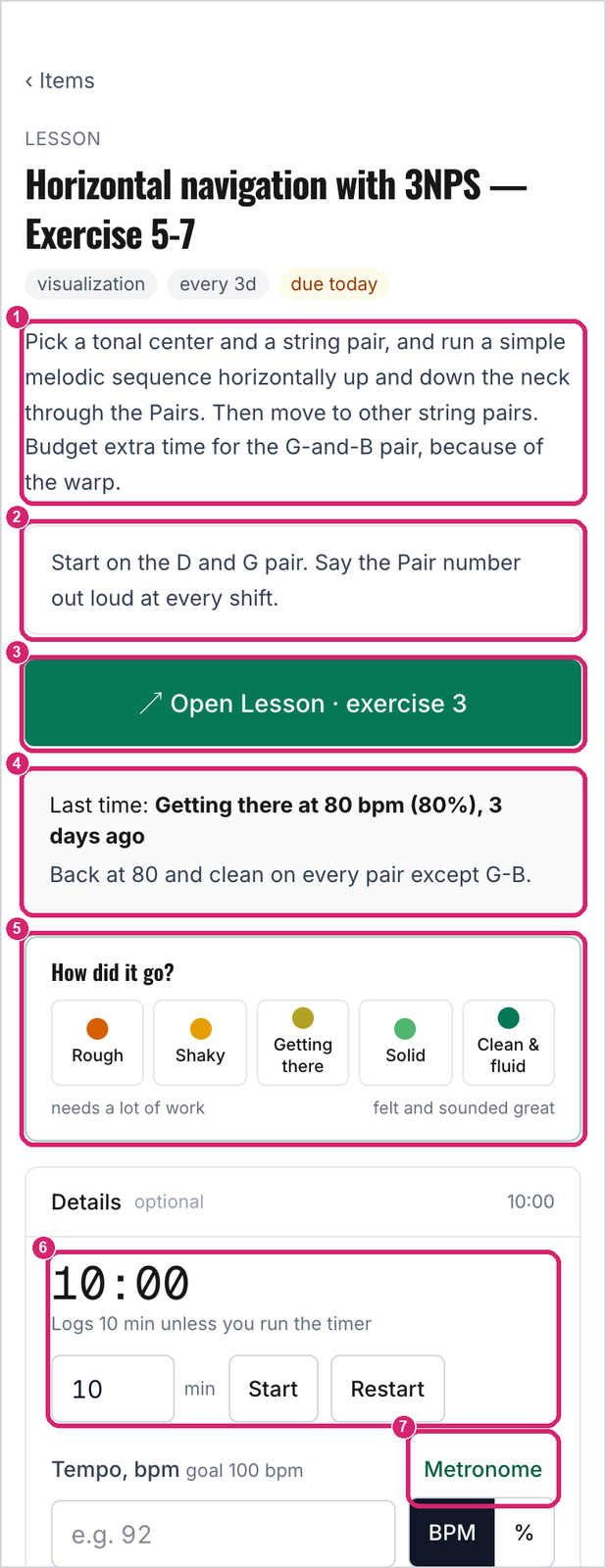
① Description. ② Your note. ③ Open the lesson, tool, or link. ④ Last time. ⑤ How did it go? ⑥ The clock, waiting for Start. ⑦ Metronome.
Below that are Edit (change anything you set when adding it) and Archive.
7. Watching your progress
On each item
At the bottom of every item's page, History opens a record of every time you practiced it: the item's current gap between practices and next due date, a chart of your self-ratings, a tempo chart with a dashed line at your goal (once you've logged a tempo), and a journal of every log with your notes, newest first.
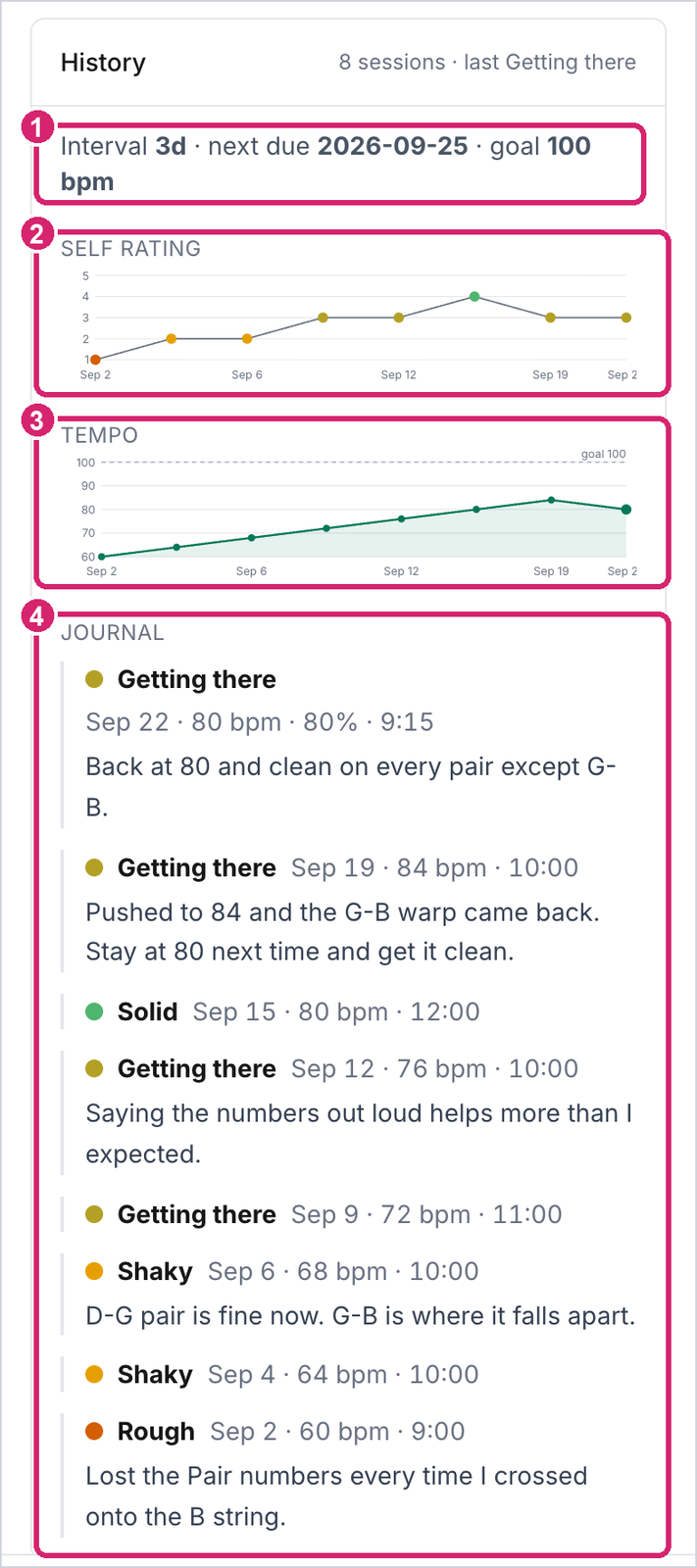
① Current gap and next due date. ② Self rating over time. ③ Tempo over time. ④ Journal.
This is where the planner pays off. After a few weeks you can see an exercise go from Rough at 60 BPM to Solid at 80, along with the notes that explain the dips.
Across everything
The History tab shows your streak, your last seven days, and every log grouped by day. A day doesn't break your streak until it's over. Tap any log to see that item's history right there: its self-rating chart, its tempo chart, and its journal. Tapping another log closes the first, and the link at the bottom of an open log goes to the item's page.
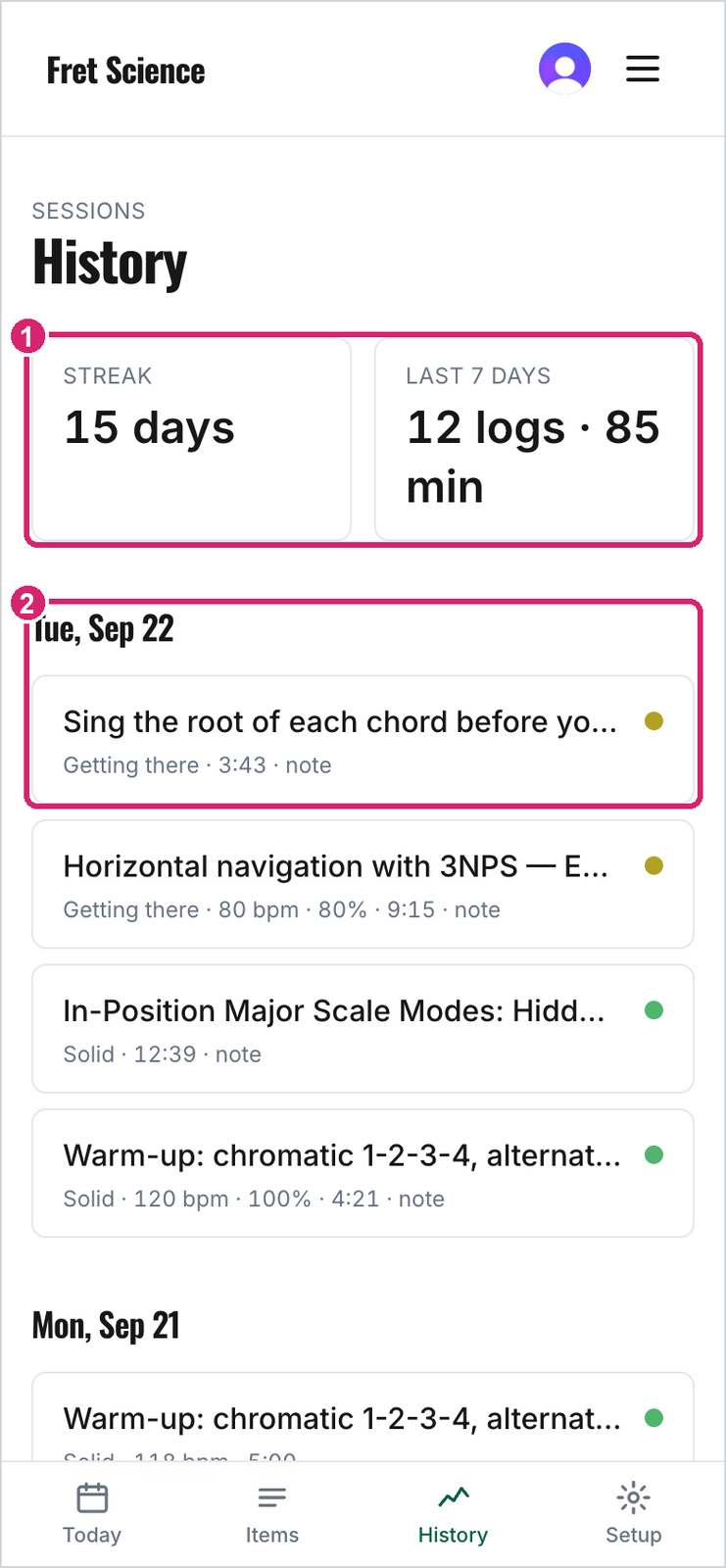
① Streak and the last seven days. ② A day's logs, with rating, tempo, and time.
Course by course
The Courses tab lists every exercise in Improv 101 or Complete Scale Fluency in course order, by module and lesson, with a switch at the top for the two courses. Each row shows the exercise's number and a short name, then how many times you've practiced it, your latest rating, and when you last played it. A filled dot means the exercise is in your practice; an empty one means it isn't yet. Rows also say when an item is daily, paused, or archived.
At the top, a bar sums up the course: how many of its exercises you've practiced, how many you last rated Solid or better, how many you're still working on, and how many you've added but haven't practiced yet. Under it, Next in the course names the first exercise you haven't added. + Add puts it in your practice, and Skip moves on to the one after it.
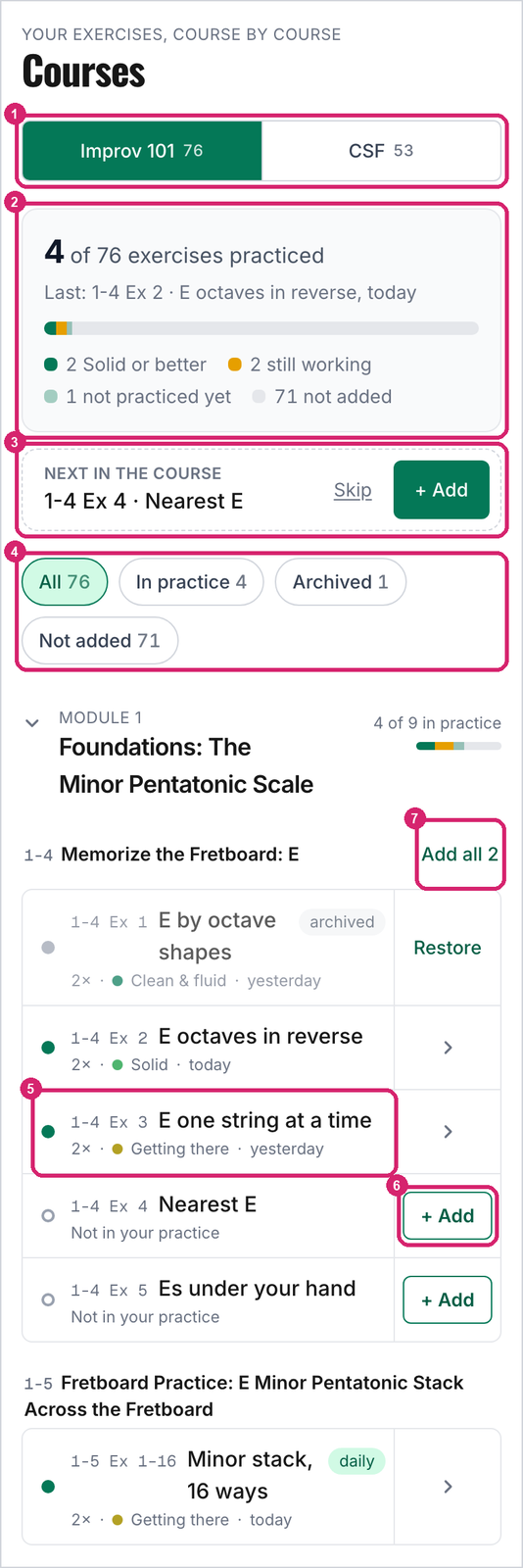
① Switch courses. ② The course so far. ③ Next in the course. ④ Filters. ⑤ An exercise in your practice: times practiced, latest rating, and when. ⑥ Add one exercise. ⑦ Add every exercise from the lesson that you don't have yet.
Tap a row to open it. You'll see the start of the exercise text with a link to the lesson, your last few ratings, and when the item is next due. A row that isn't in your practice has + Add at the end, which adds the exercise By rating in its suggested area. Add and edit, inside the open row, does the same and then opens the item's sheet, so you can make it daily or set planned minutes. Add all beside a lesson adds every exercise from that lesson you don't have yet. An archived row offers Restore instead, which brings back the item you had, history and all, rather than starting a new one. After each change a line at the bottom of the screen says what happened, with Undo.
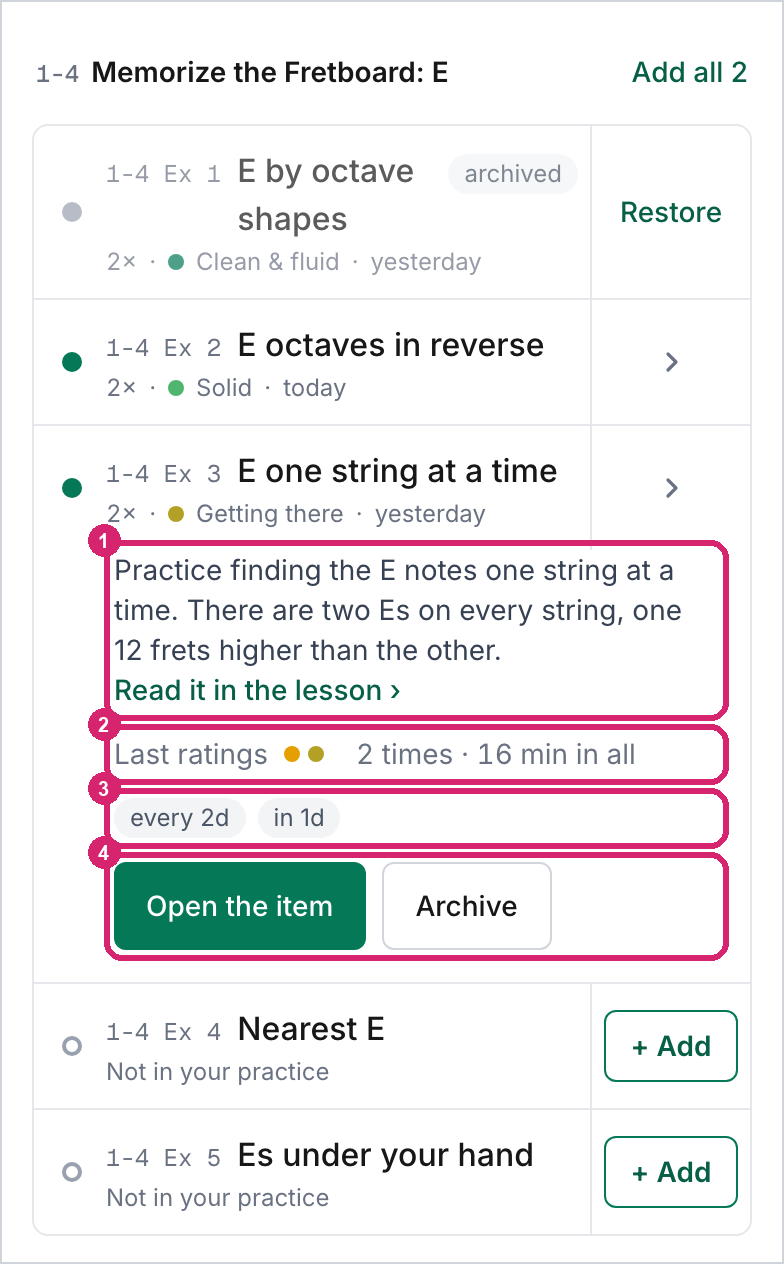
① The start of the exercise, and a link to it in the lesson. ② Your last ratings, times practiced, and time spent. ③ How often it comes up and when it's next due. ④ Open the item, or archive it.
When anything from the course is due, Practice what's due under the summary starts a session with just those items, in the order Today would run them, and the session comes back to the course when it ends. If a session is already going, it asks first, as Today does.
If you added course exercises before the short names arrived, a line under the summary says how many of them still have their old long names, with Use the short names beside it. That renames them all at once and keeps their history and schedules. An item you renamed yourself keeps your name.
The filters (All, In practice, Archived, Not added) narrow the list, and tapping a module's heading folds it away; the planner remembers the folded modules on that device. For an exercise the planner rolls a new version of each day, the open row also counts how many of its versions you've practiced. Each course page has a Your exercises button that opens the tab at that course. For a course your membership doesn't include, the tab lists the exercises by number and name only.
8. Keeping the list tidy
The Items tab lists everything, grouped by how it's scheduled.
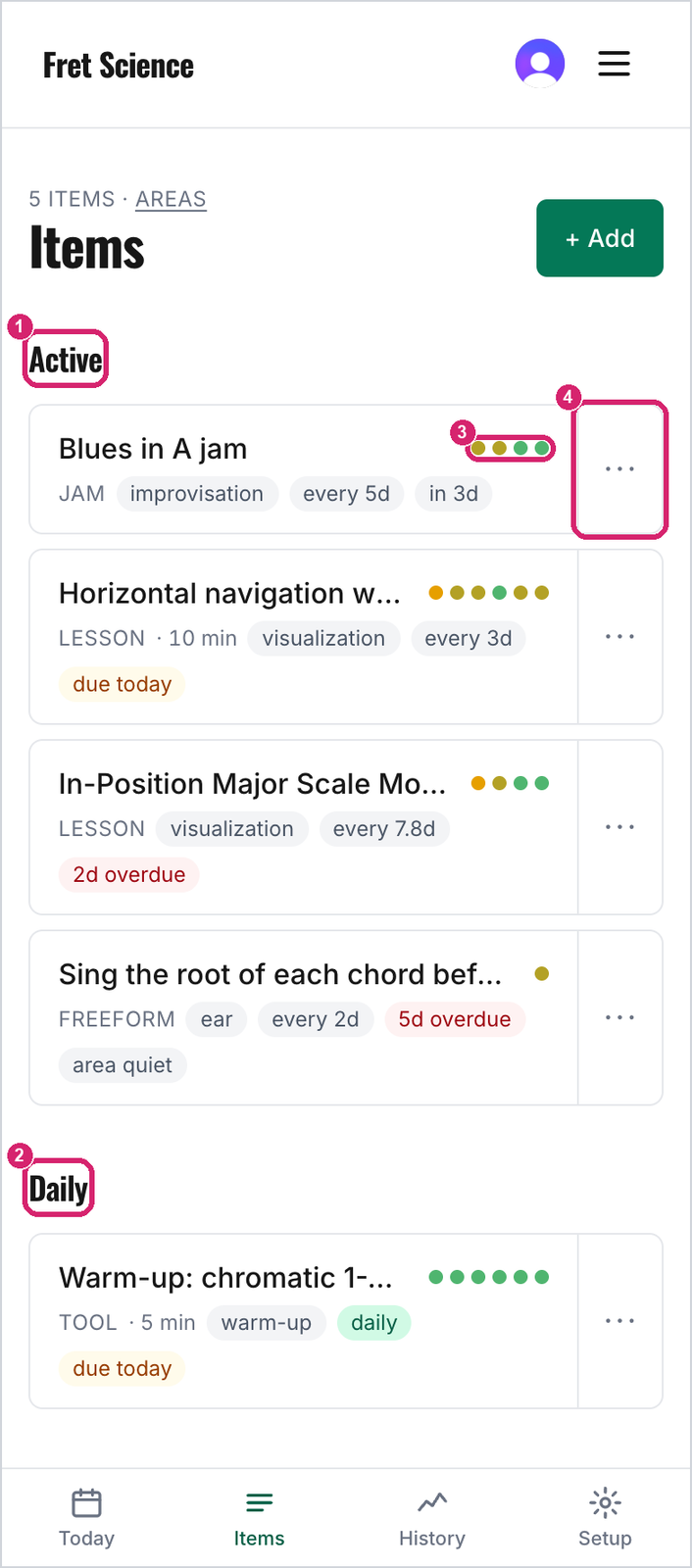
① Active: scheduled by your ratings. ② Daily: pinned items that come up every day. ③ Recent ratings, as on Today. ④ ⋯ for Edit, Archive, and Delete.
The Schedule choice (in the item sheet, under More) decides which group an item is in:
| Schedule | What it does |
|---|---|
| By rating | The normal choice. Each rating moves the next practice sooner or later. |
| Daily (pinned) | Due every day, whatever the rating. For warm-ups and anything you want to keep daily. |
| Paused | Kept, but never due and never suggested. For things you're setting aside for a while. |
| Archived | Kept for its history, never suggested. For things you've finished with. Restore it from Items at any time, and it goes back to the schedule it had. |
Switching an item to Daily makes it due the day after you last practiced it, so an item you practice and then pin still comes up tomorrow.
Editing an item on By rating shows the same Interval field under More, holding the gap your ratings have reached so far. Type a different number to set it yourself, anywhere between the Floor and Cap in Setup (1 to 30 days unless you've changed them). Before you save, the line under the box shows the new due date, counted from the last time you practiced the item. Your ratings then carry on stretching or shrinking the gap from there.
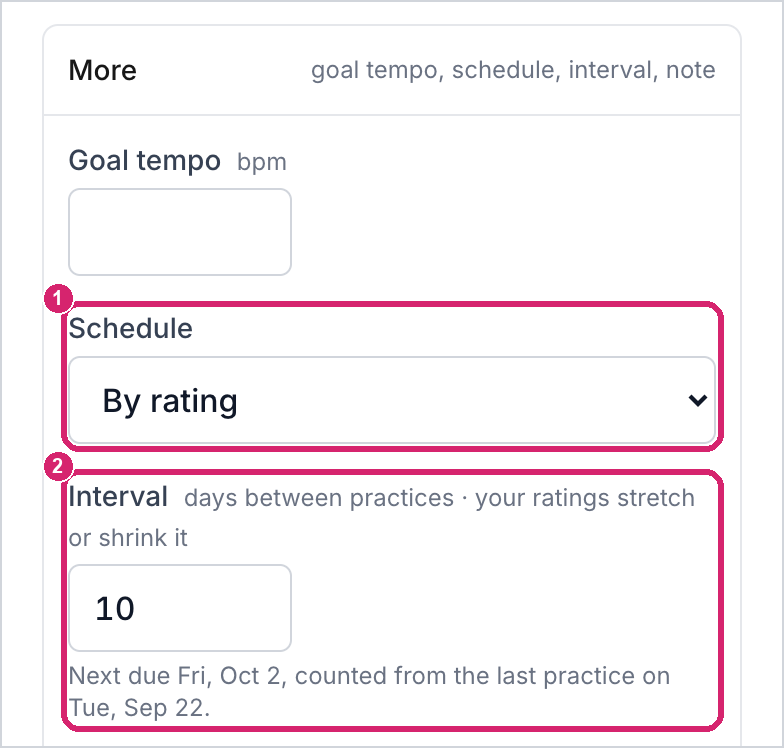
① By rating. ② The interval, typed as 10 days, with the due date that gives.
Each row on Items ends in ⋯, with Edit, Archive (or Restore), and Delete, so you can tidy the list without opening anything. Delete removes the item and its history together; archive if you might want the history later.
Areas live in Setup → Edit areas. The planner starts you with seven, in the order a practice session usually runs: warm-up, visualization, technique, rhythm & timing, ear, repertoire, and improvisation. That order is the order your sessions run in. Drag an area by its handle to move it, type in its box to rename it, or add your own at the bottom. Renaming an area updates every item filed under it; deleting one takes it off those items and leaves their history alone.
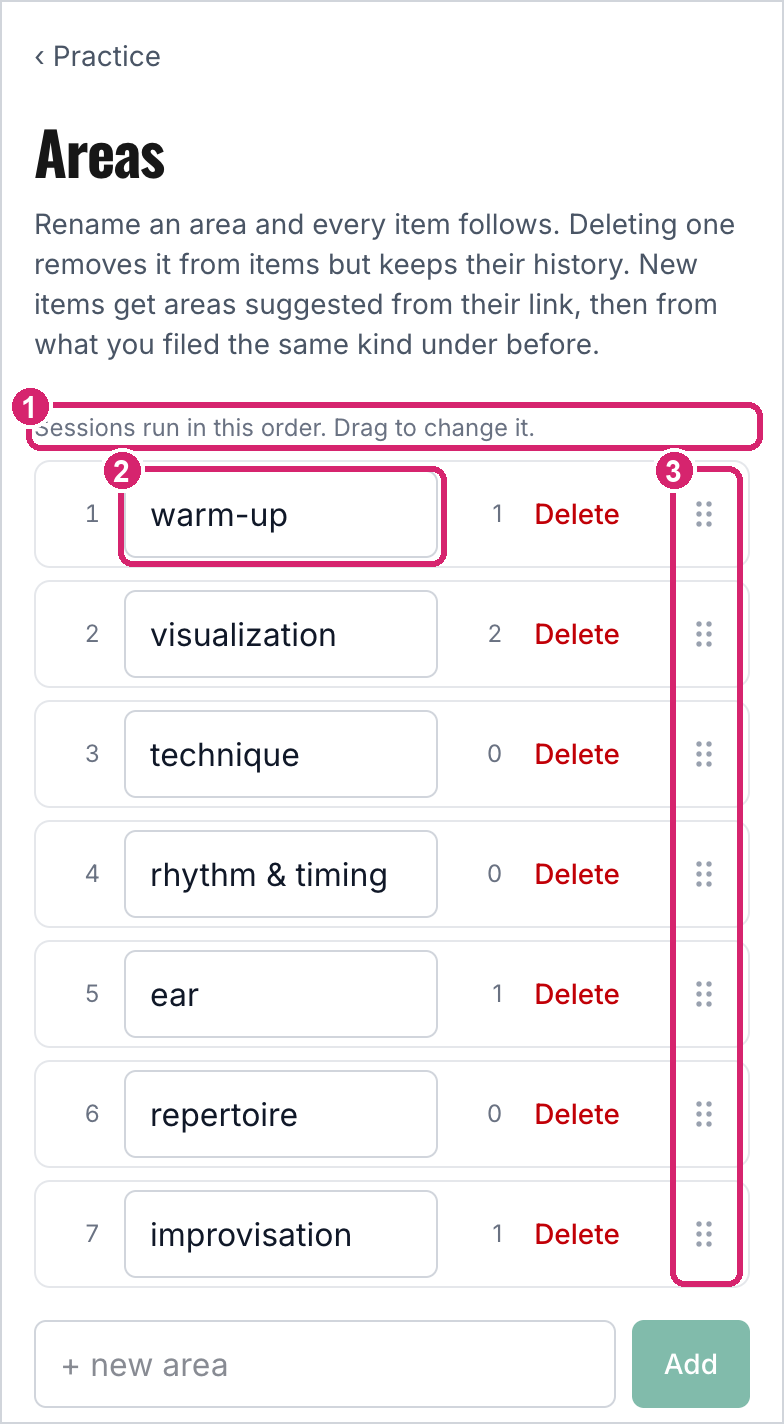
① Sessions run in this order. ② Type to rename. ③ Drag handles. The number beside each area is how many items use it.
Tags have no screen of their own. A tag exists as long as some item carries it, so to retire one, edit the items that have it and tap it off. On Today, Items, and in the picker, an item's tags follow its areas as #3NPS.
9. Tuning the schedule (optional)
Most people never need this. If items keep coming back too often or not often enough, Setup lets you change the numbers behind the schedule. To change one item's gap rather than the rule for all of them, edit its Interval instead (section 8).
Each rating multiplies the gap before the item comes back. With the defaults, Rough halves it (×0.5), Getting there keeps it (×1), and Clean & fluid stretches it by 60% (×1.6). The limits below the multipliers set the shortest gap (Floor, 1 day), the longest (Cap, 30 days), the gap a new item starts with (2 days, though a new item is always due the day you add it), how many days until an area counts as quiet (7), and how far a quiet area's items get pushed up the list (3).
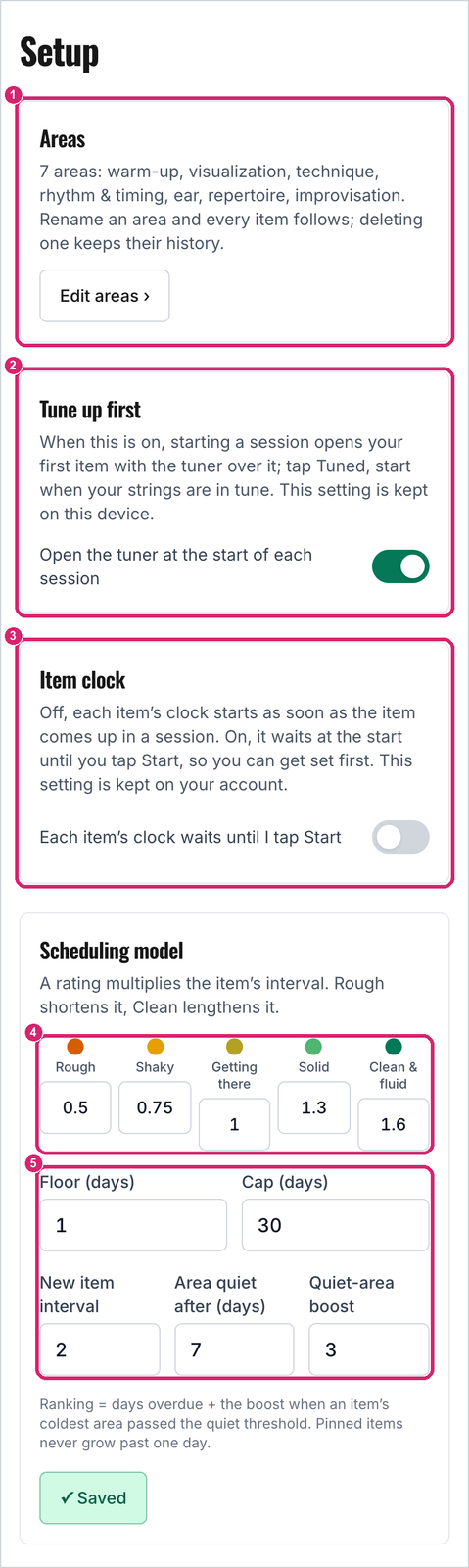
① Shortcut to the Areas screen. ② Tune up first. ③ Item clock. ④ One multiplier per rating. ⑤ Floor, cap, new-item gap, and the quiet-area settings.
For example, an exercise on a 3-day gap that you rate Solid comes back in about 4 days. Rate it Rough and it's back tomorrow or the day after.
Logging the same item twice in one day moves its schedule once, by the later rating. Both logs stay in its history.
Setup also has the Tune up first switch, which decides whether the tuner opens when you start a session or an item's clock (see Tuning up in section 5). It's saved on each device, so it can be on at the guitar and off on your phone.
Item clock makes each item's clock wait until you tap Start (see Starting the clock yourself in section 5). Unlike Tune up first, it's saved on your account, so it's the same on every device.
10. Telling me what you think
If something confuses you, takes more taps than it should, or keeps bringing back the wrong items, I'd like to hear about it. So would ideas for what it should do next.
The Feedback button in the bottom corner of every page on the site comes straight to me, and it's the best place for all of this. It records which page you were on, so just say what you tapped and what you expected to happen.