Guide
How to use the Fretboard Trainer
The Fretboard Trainer shows you a guitar neck with no note names on it and quizzes you. Some questions give you a note and ask you to find it. Others mark a spot and ask you to name the note there. The trainer times every answer, keeps track of the spots that slow you down, and asks those more often, so your practice time goes to the notes you don't know yet.
You can set it up in a lot of different ways. It can drill one string, one note, or one small part of the neck, or carry a note up the neck in octaves. It works for bass and for 7- and 8-string guitars, it has a timed mode with a leaderboard, and, new in beta, it can listen through your microphone while you play the answers on your guitar. This guide covers the controls first, then the setups I'd use for each of the practice methods in my fretboard lesson.
The trainer is free, and you don't need an account to use it. Signing in saves your progress to your account and puts your speed runs on the leaderboard.
If you're just getting started, watch How to memorize the fretboard first. The trainer was built to practice what that lesson teaches.
1. Questions and answers
The trainer lives at fretscience.com/tools/trainer, and the first question is waiting when the page opens.
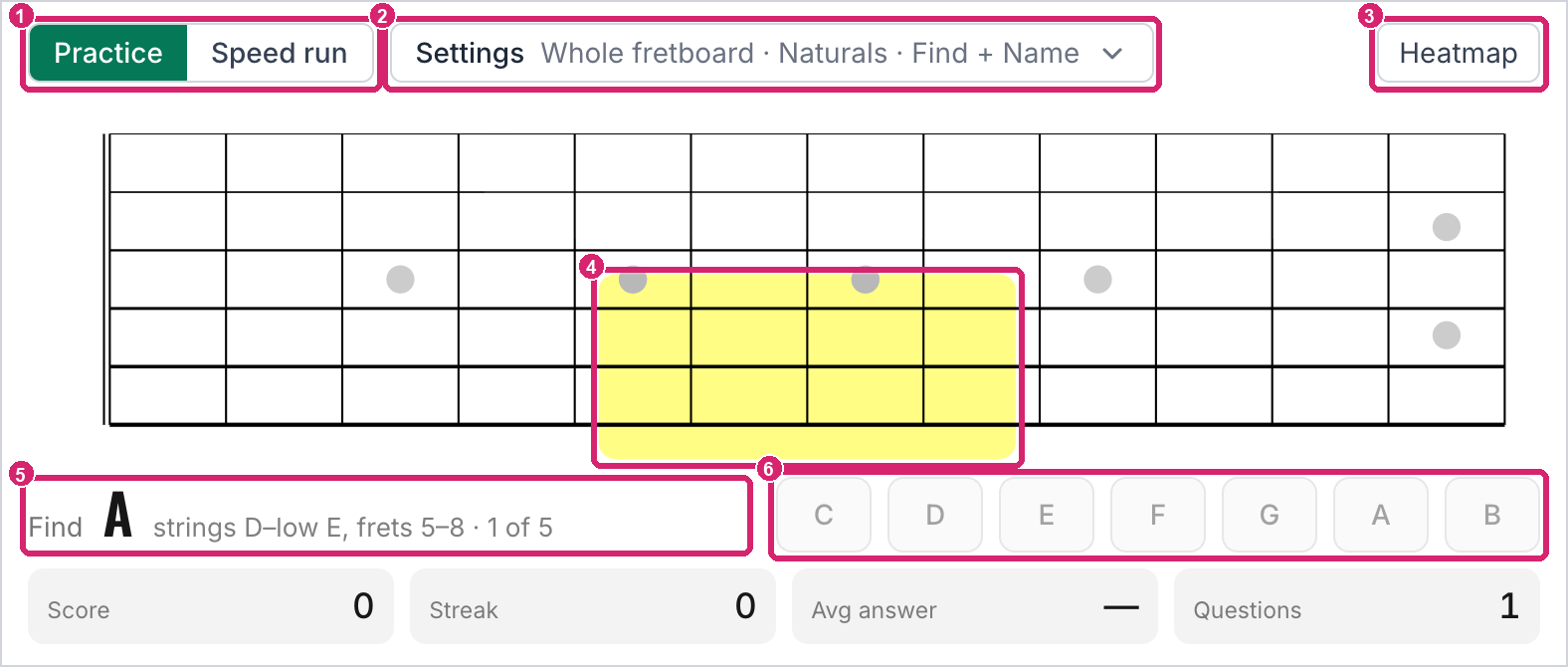
① Practice or Speed run. ② Settings, with the current setup in one line. ③ The heat map. ④ The part of the neck this question is about. ⑤ The question. ⑥ The note buttons, for Name questions.
This is a Find question. It asks for an A inside the yellow box, which covers the D, A, and low E strings from the 5th fret to the 8th. Tap any spot in the box where an A lives. "1 of 5" means the next four questions use the same box before the trainer moves you somewhere else on the neck.
A right answer lights up green, and the next question follows. A wrong answer stops and shows you what happened: a red ring where you tapped and a green ring on every A in the box. Tap Continue (or press Enter or the space bar) when you've had a look.
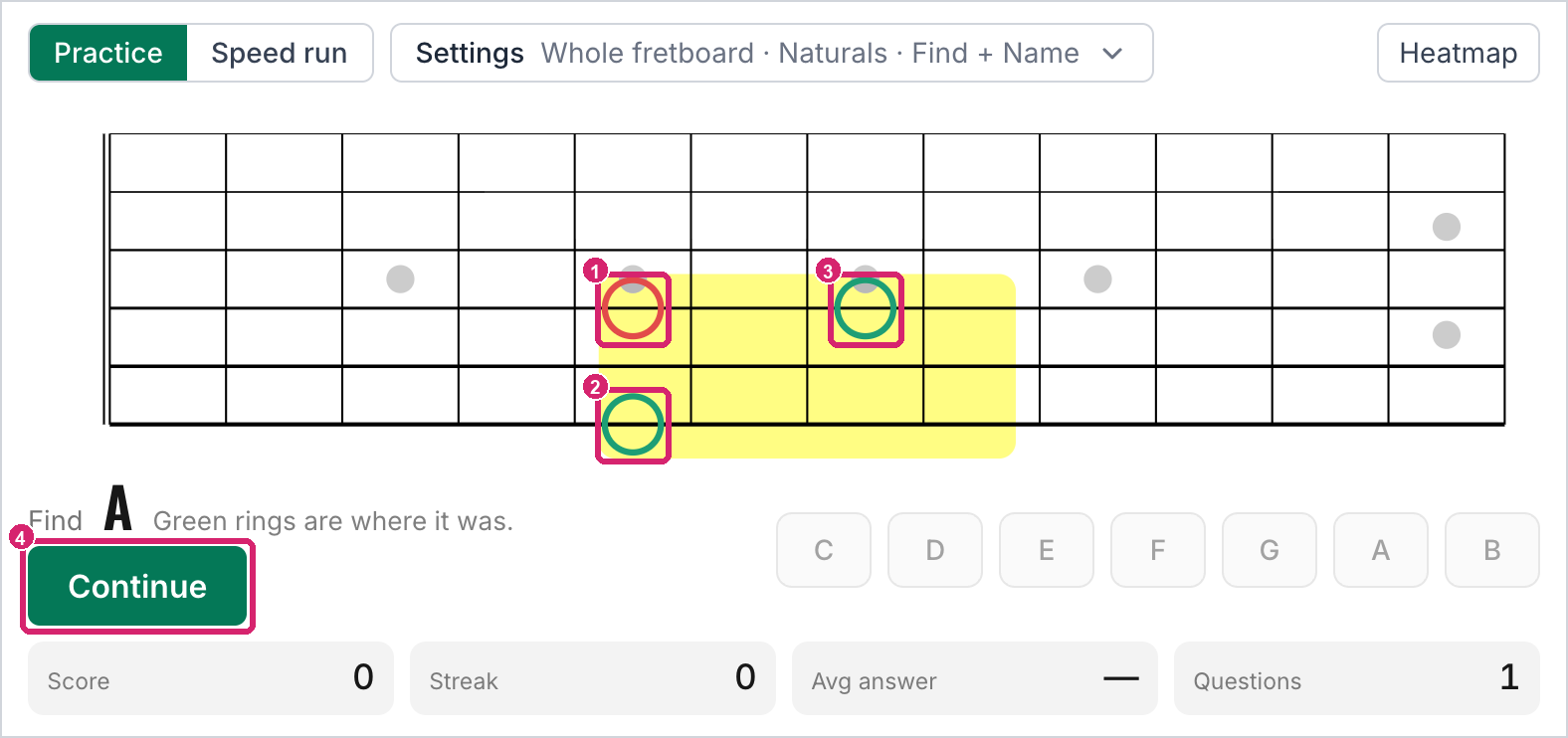
① The wrong tap, a G. ② ③ The two A's in the box. ④ Continue.
The other kind is a Name question. A black dot marks one spot on the board, and you tap that note's name on the buttons. If you get it wrong, the trainer tells you the right answer.
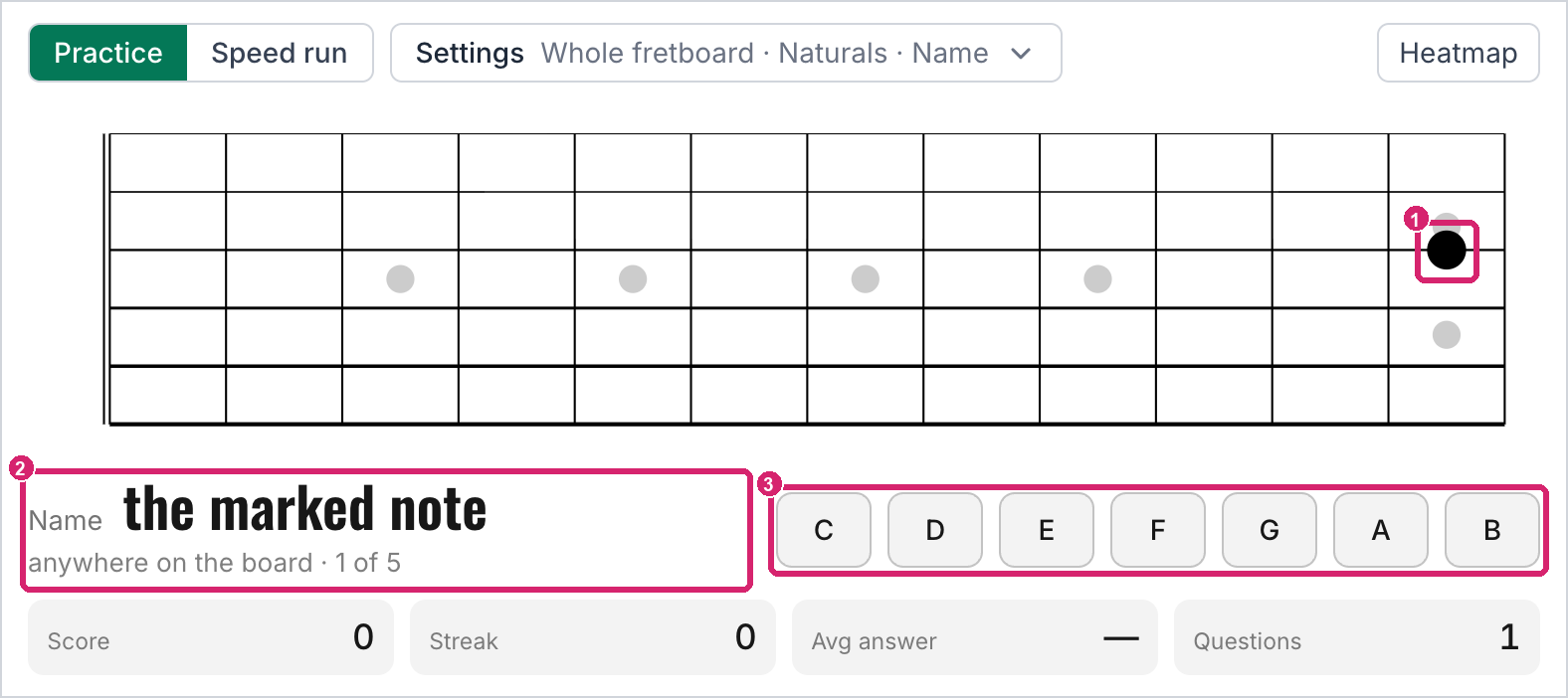
① The marked spot. ② The question. ③ The note buttons.
The row under the board keeps score: right answers, your current streak, your average answer time, and the number of questions so far. An answer that takes longer than 10 seconds doesn't count toward your average or toward what the trainer learns about you, because it assumes you stepped away.
2. Settings
Everything else is behind the Settings button. Change anything there, and the trainer starts over with the new settings.
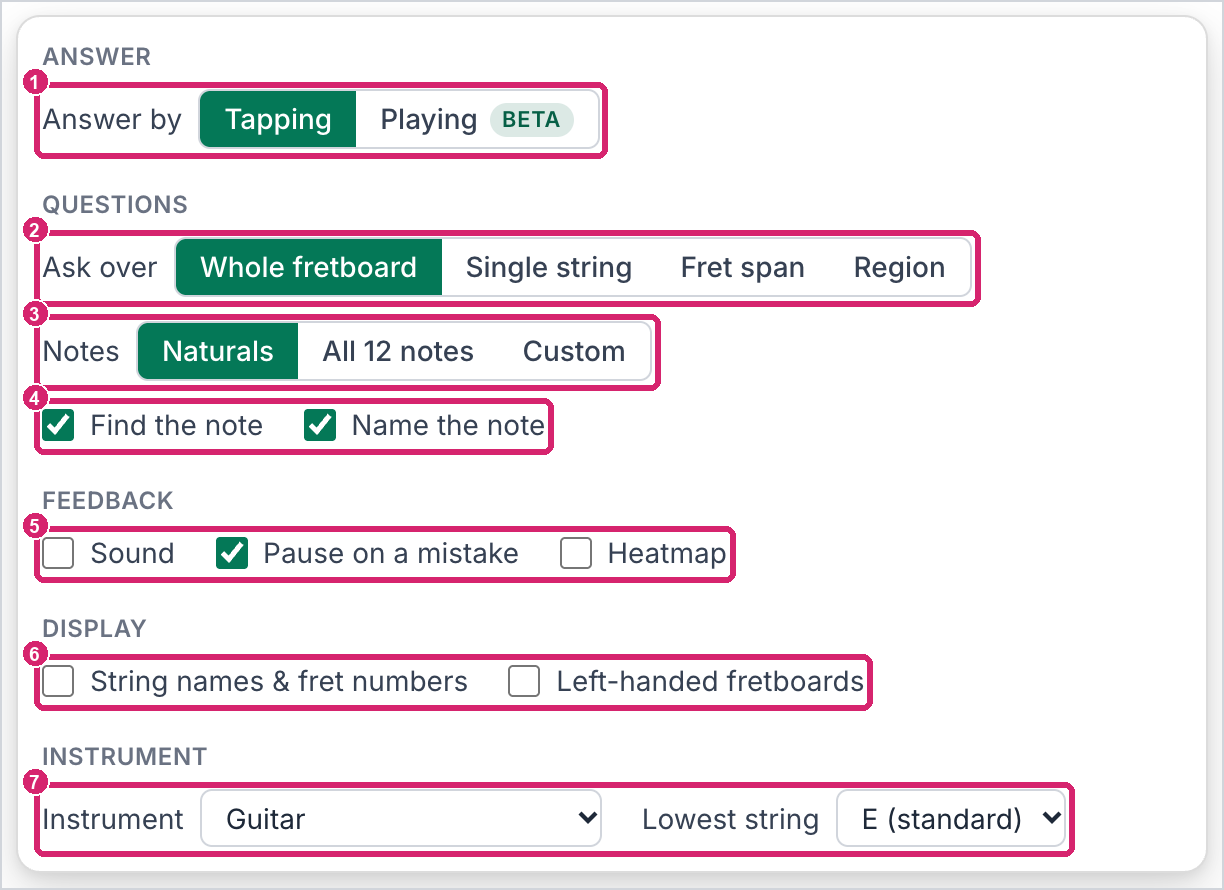
① Answer by. ② Ask: questions or a drill. ③ Which part of the neck. ④ Which notes. ⑤ Which kinds of question, and Find every one. ⑥ Sound, Pause on a mistake, the hint, and the heat map. ⑦ Labels on the board, and Left-handed fretboards. ⑧ Instrument, tuning, and frets.
Answer by switches between Tapping, on the screen, and Playing, on your guitar. Playing is in beta, and section 6 covers it.
Instrument and Lowest string say what you play. The choices are guitar, guitar tuned in all fourths, 7- and 8-string guitars, and 4-, 5-, and 6-string basses, each at standard pitch or tuned down or up. The board redraws to match. Each instrument and tuning keeps its own record of your weak spots, because the 5th fret of the 3rd string is a different note on a bass.
Frets sets the length of the board: 12, 22, or 24 frets, to match your guitar. It applies to practice; a speed run always uses 12.
Ask chooses between the usual Find and Name questions and three drills that pick their own spots anywhere on the board. Octaves up starts by asking you to find your note on one of the two lowest strings, anywhere it has an octave above it. Then it asks for that note's octave two strings over, then the octave above that, until the board runs out, and then a new chain starts. If you miss one, the trainer shows you where it was and the chain carries on from there. Octaves down does the same from the two highest strings. Nearest to a fret marks a fret and asks for the closest place your note lives on each side of it, one toward the nut and one toward the bridge, on any string. Where the closest fret has your note on both outer strings, you find both. The drills ask only Find questions, and while one is on, Ask over, Order, the kinds of question, and Find every one go away.
Ask over chooses the part of the neck:
- Whole fretboard asks Name questions anywhere. Find questions go to one string or one small region at a time, and the spot changes every five questions.
- Single string keeps every question on one string. Pick the string, or leave it on Any string to get a new one every three questions.
- Fret span covers every string across five frets (0–4, 2–6, and so on to the end of the board).
- Region covers three neighboring strings across four frets, like the yellow box above.
You can turn on more than one. Each group of questions then picks one of them, which keeps an exercise from going stale.
With Single string on its own, Order can be Random, Cycle of 4ths, Cycle of 5ths, or one note per string, Up or Down. A cycle asks every note on the string in the cycle's order, then moves to the next string up. One note per string moves to the next string with every question, while the note steps up or down through your notes. Both ask Find questions only.
Notes chooses what you're asked about: Naturals (the seven notes with no sharp or flat), All 12 notes, or Custom, where you tap the notes you want. With all 12, the note buttons become a small piano keyboard.
Find the note and Name the note turn each kind of question on or off.
Find every one makes each Find question ask for every place the note lives in the area. Each one lights up as you find it, and the question ends when you've found them all. A wrong tap still counts as a miss and shows you the ones you hadn't found yet.
String names & fret numbers labels the board. It's off by default, since reading the answer off the edge of the board is the habit the trainer is trying to break, but it's there if you want it while you're starting out.
Sound plays the note whenever you get one right, so your ear learns the neck along with your eyes. Pause on a mistake is what holds a wrong answer on screen until you tap Continue. Turn it off, and a miss shows for a moment and moves on by itself. Hint after 8 seconds shows where the note is when you haven't found it by then. The question still waits for your answer, and it counts as a miss. Left-handed fretboards flips the board for left-handed players; it's the same left-handed setting the rest of the site uses.
The instrument, Frets, Answer by, and the checkboxes stay the way you left them. The question settings (Ask, Ask over, Order, Notes, the kinds of question, and Find every one) live in the page's address instead, so the way back to a favorite setup is a bookmark or a saved link (section 7).
3. Ways to use it
Each of the four practice methods in my fretboard lesson has a trainer setup. The advice from the lesson applies here too: when an exercise gets easy, move on to a new one, or switch between two every few minutes.
One note, everywhere
Practice method #1 is to pick one note and find it all over the neck. Choose Custom under Notes and tap a single note. With one note, the trainer asks only Find questions, each on a different string or region. Start with the notes that most often turn up as chord roots (B, E, A, D, and G), and move on once you can find your note anywhere.
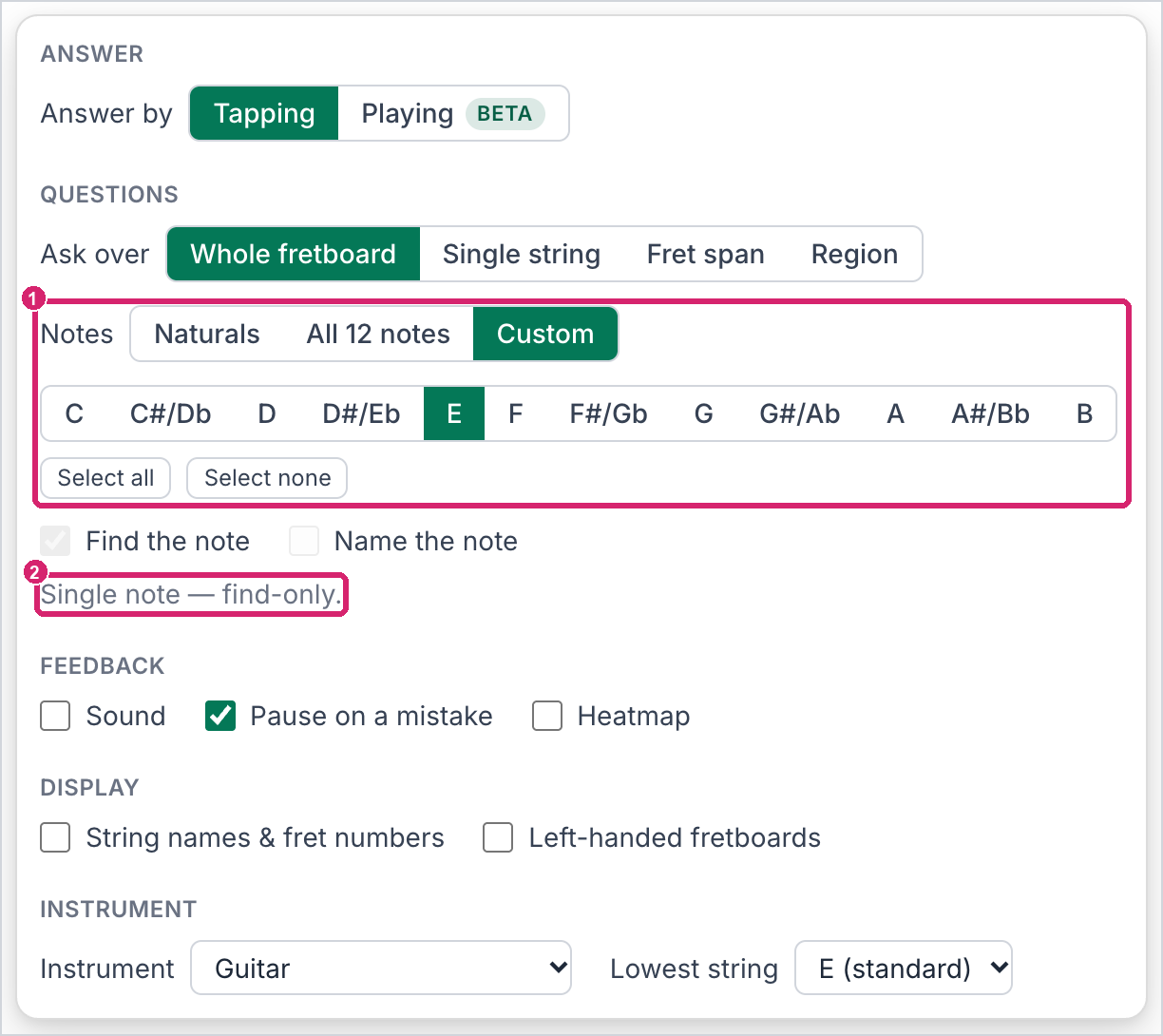
① Custom, with only E chosen. ② With one note, every question is a Find question.
This drill also works well with Playing (section 6). The trainer names the note, and you find it on your guitar.
One string, all twelve notes
Practice method #3 walks the cycle of fourths along one string. The trainer can walk it with you: choose Single string, set Notes to All 12 notes, and set Order to Cycle of 4ths. Pick a string, or leave it on Any string to go through them all from the low E up. Start with the low E string, then the A string, which is especially useful for rhythm guitar. The higher strings pay off most if you're working on improvisation.
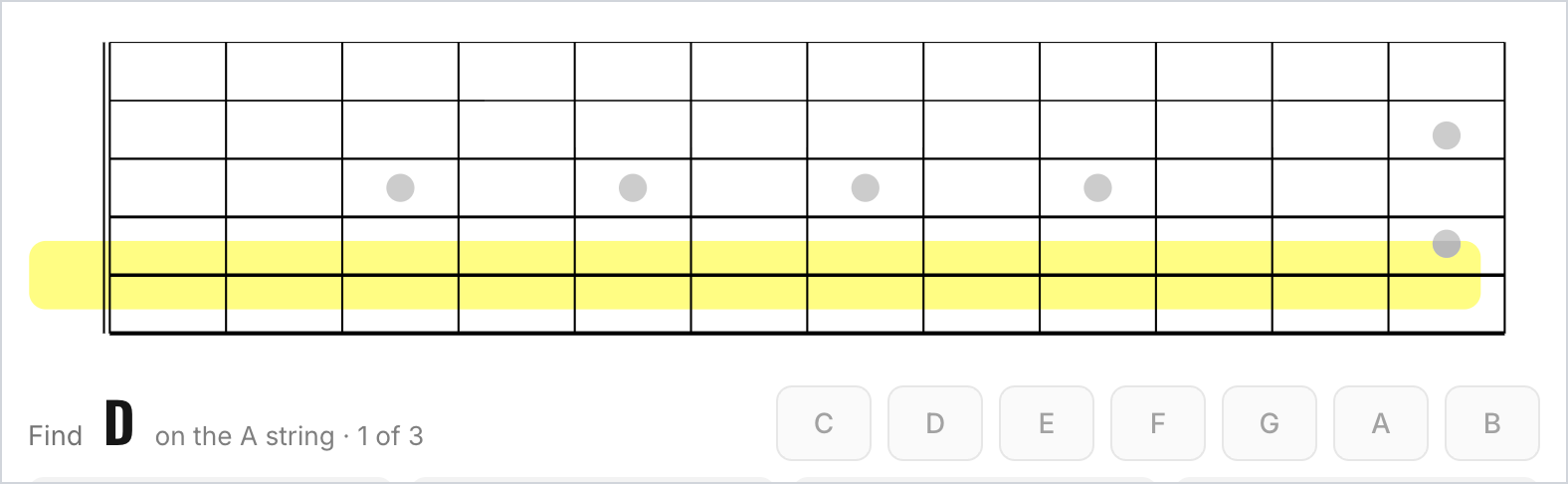
Single string, set to the A string: every question stays on the yellow string.
One small part of the neck
Practice method #2 works inside a limited area, such as a five-fret range on the top four strings. Region gives you three strings across four frets, and Fret span gives you every string across five frets. Choose a specific area to work on the part of the neck you're learning, or leave it on Any to get a new area every few questions.
Turn on Find every one to have each question ask for every place the note lives in the area, so you cover all of it before the trainer moves on.
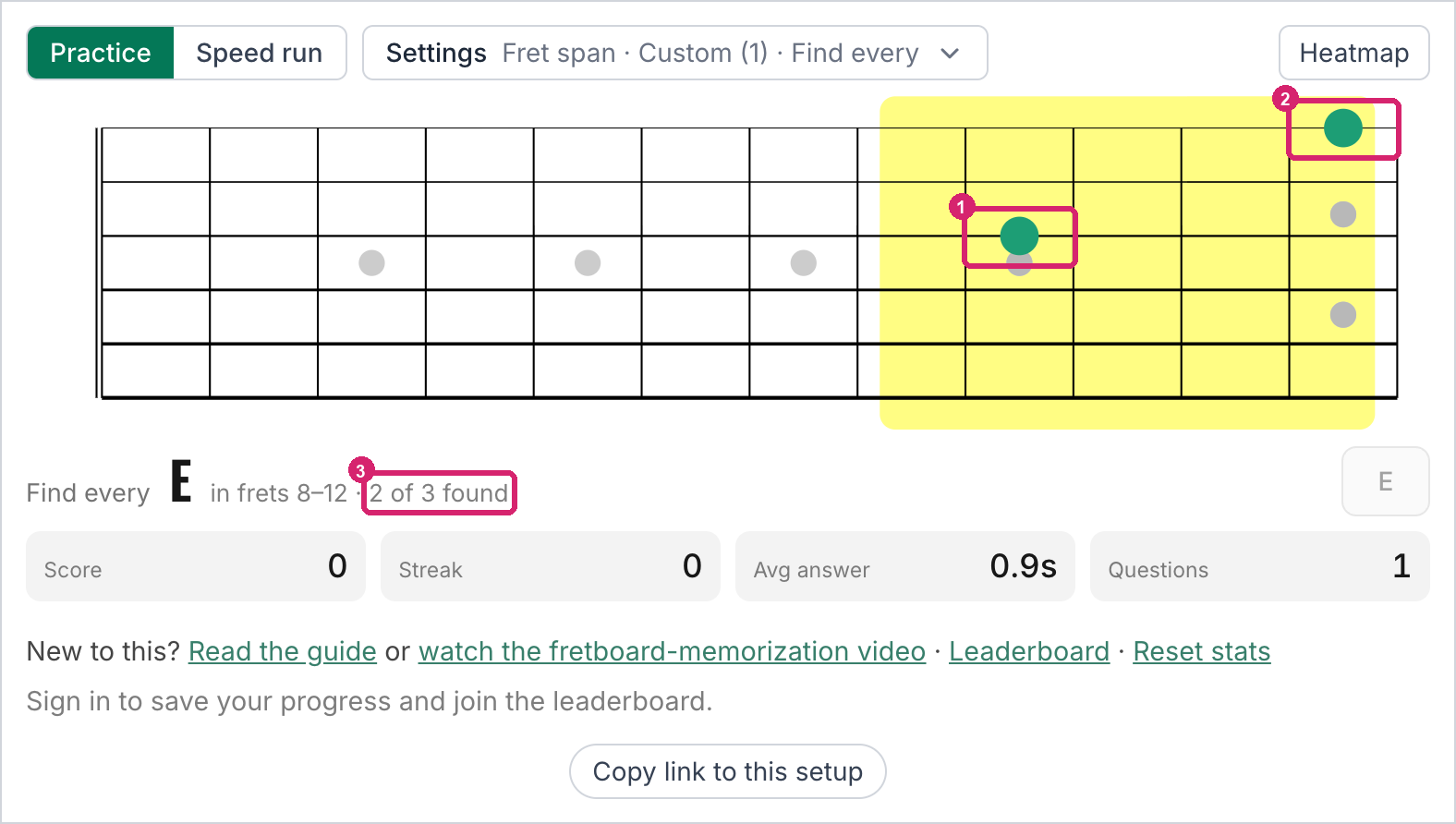
① ② The two E's found so far, in frets 8–12. ③ How many are found. The third is on the low E string.
The whole neck, weakest spots first
Leave Ask over on Whole fretboard with both kinds of question turned on, and let the trainer choose. It leans toward the spots you're slow on, the ones you miss, and the ones it hasn't asked you about yet. Every so often, open the heat map (section 4) to see where you stand, then aim a Region or a Single string at the worst of it.
Octaves and the nearest note
Once you can find a note on the low strings, Octaves up carries it across the neck. From the low E or A string, the octave is two strings over and two frets up, or three frets up when the jump crosses the B string. Octaves down carries it back from the high strings. Choose one note under Custom for these, as you would for practice method #1. If your guitar has 22 or 24 frets, set Frets to match so the chains can climb all the way up the neck.
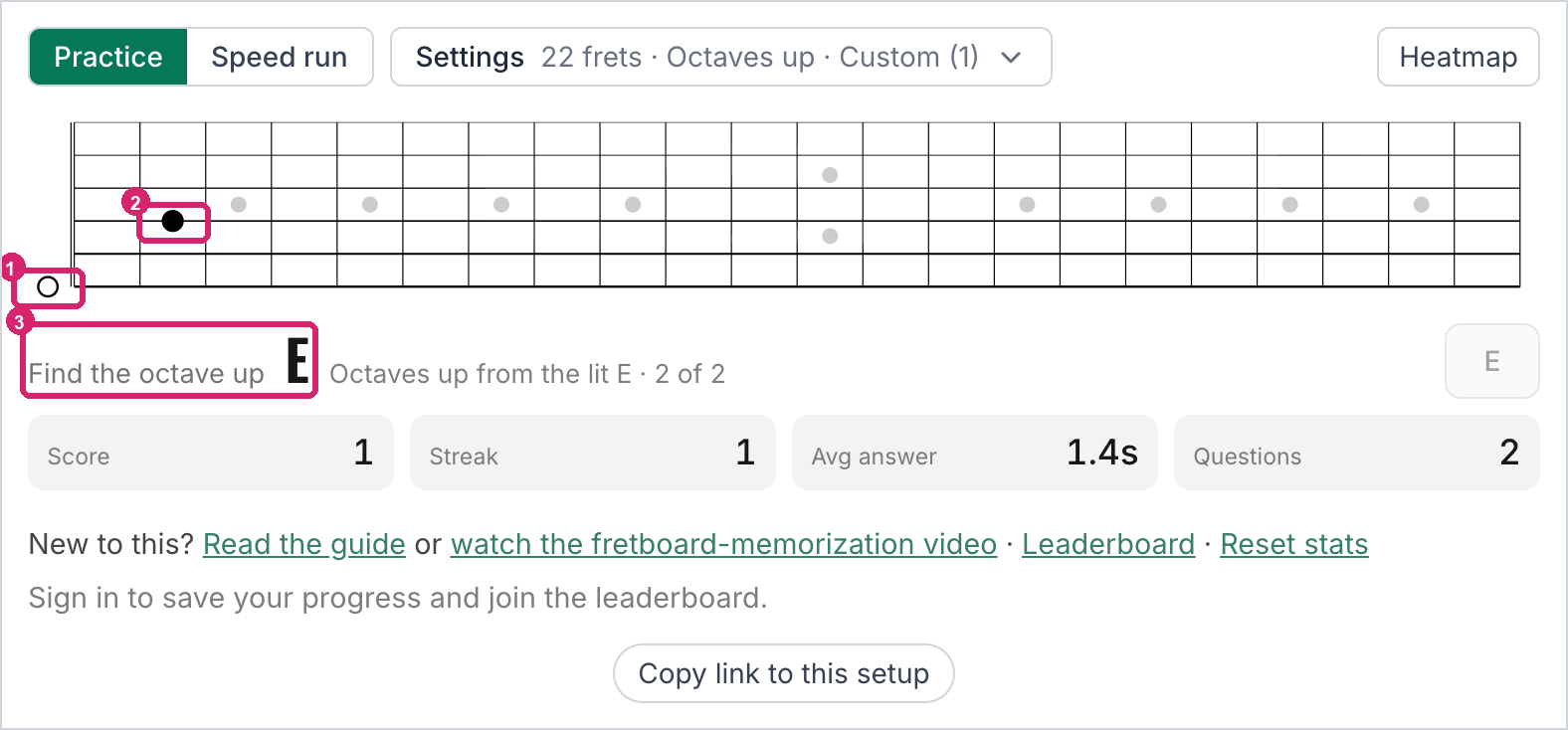
① The open low E you started the chain on. ② The E found an octave up, which the next question starts from. ③ The question: the next octave up.
Nearest to a fret turns things around: the trainer marks a fret, and you find the closest place your note lives on either side of it, whatever string it's on.
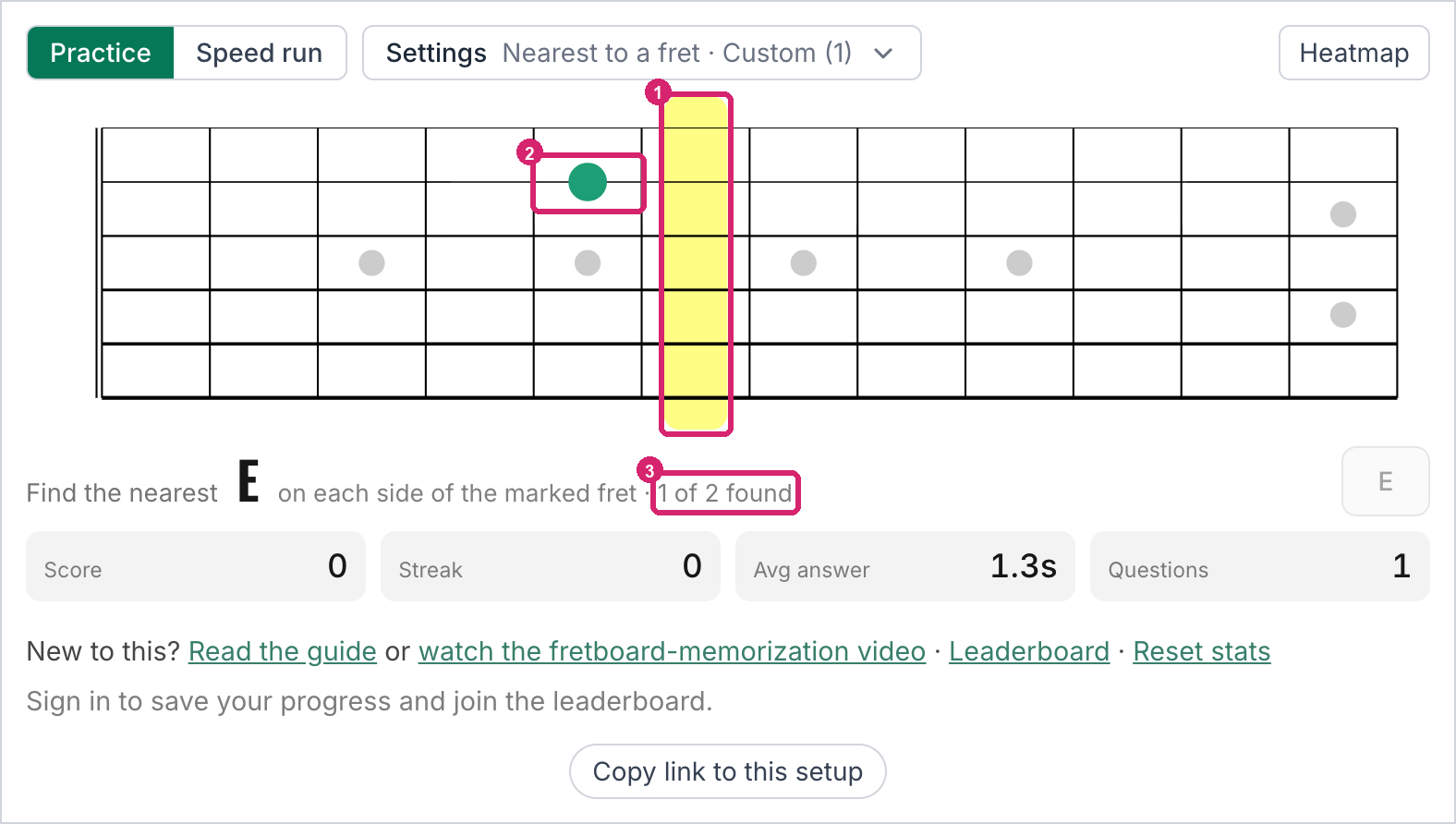
① The marked fret. ② The nearest E toward the nut, found. ③ How many are found. The other is toward the bridge.
Bass, 7-string, and other tunings
Choose your instrument and tuning in Settings, and everything above works the same way. The trainer keeps your progress on each one separately.
Against the clock
When practice starts to feel easy, try a speed run (section 5). The clock gets tighter with every right answer.
4. The heat map
Heatmap swaps the question for a map of your speed at every spot on the board. Green means you name that note in under 2 seconds on average, amber means 2 to 5 seconds, and red means more than 5. An empty ring is a spot you haven't been asked about yet.
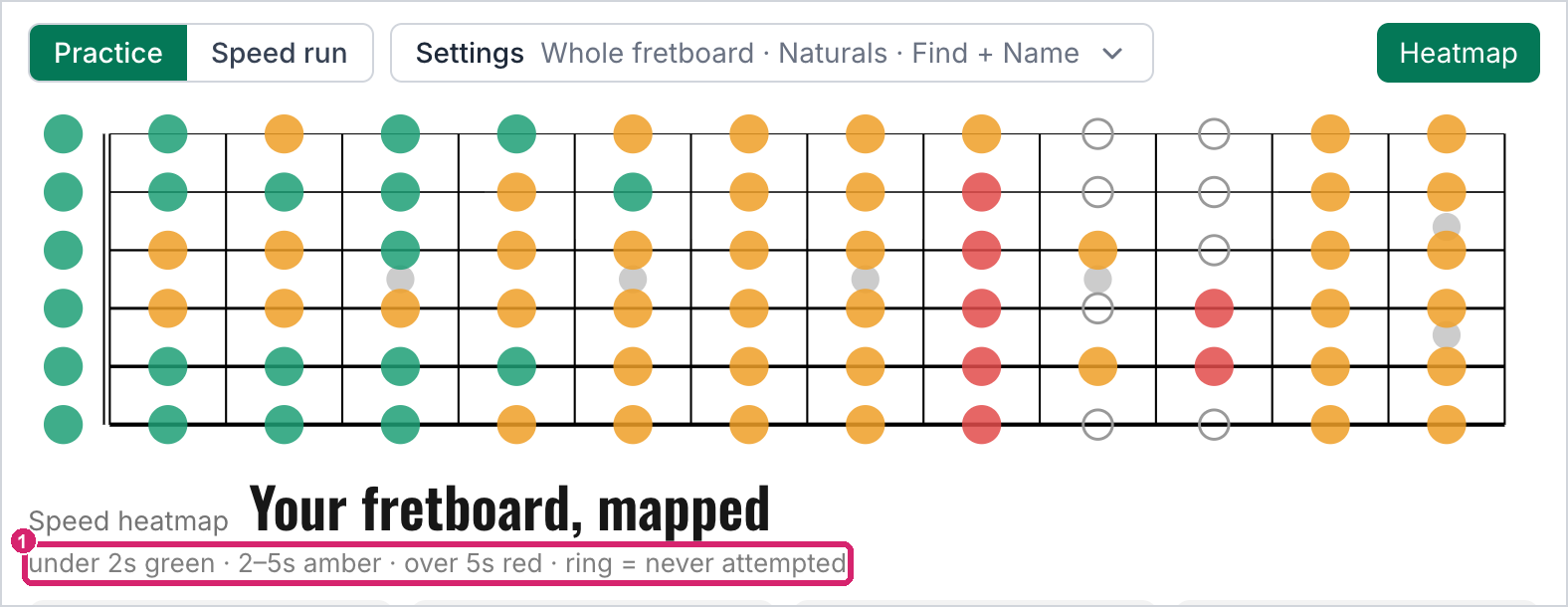
An example heat map. ① The key.
The map is built from your Name answers, since each of those is tied to one exact spot. A session of Find questions alone (a one-note drill, for instance) won't change it. Tap Heatmap again to go back to the questions.
Reset stats, below the score row, clears the heat map and everything the trainer has learned about your weak spots on the instrument you're using, so it starts fresh. Your saved scores and your place on the leaderboard aren't touched.
5. Speed runs and the leaderboard
Speed run is the timed mode. Tap Start, and the questions come in groups of five. Each group either asks you to name marked notes anywhere on the board or to find notes on one string or region. You start with 7.5 seconds per question, and every right answer takes 2% off that, down to 1.2 seconds. A wrong answer or running out of time is a miss, and the third miss ends the run.
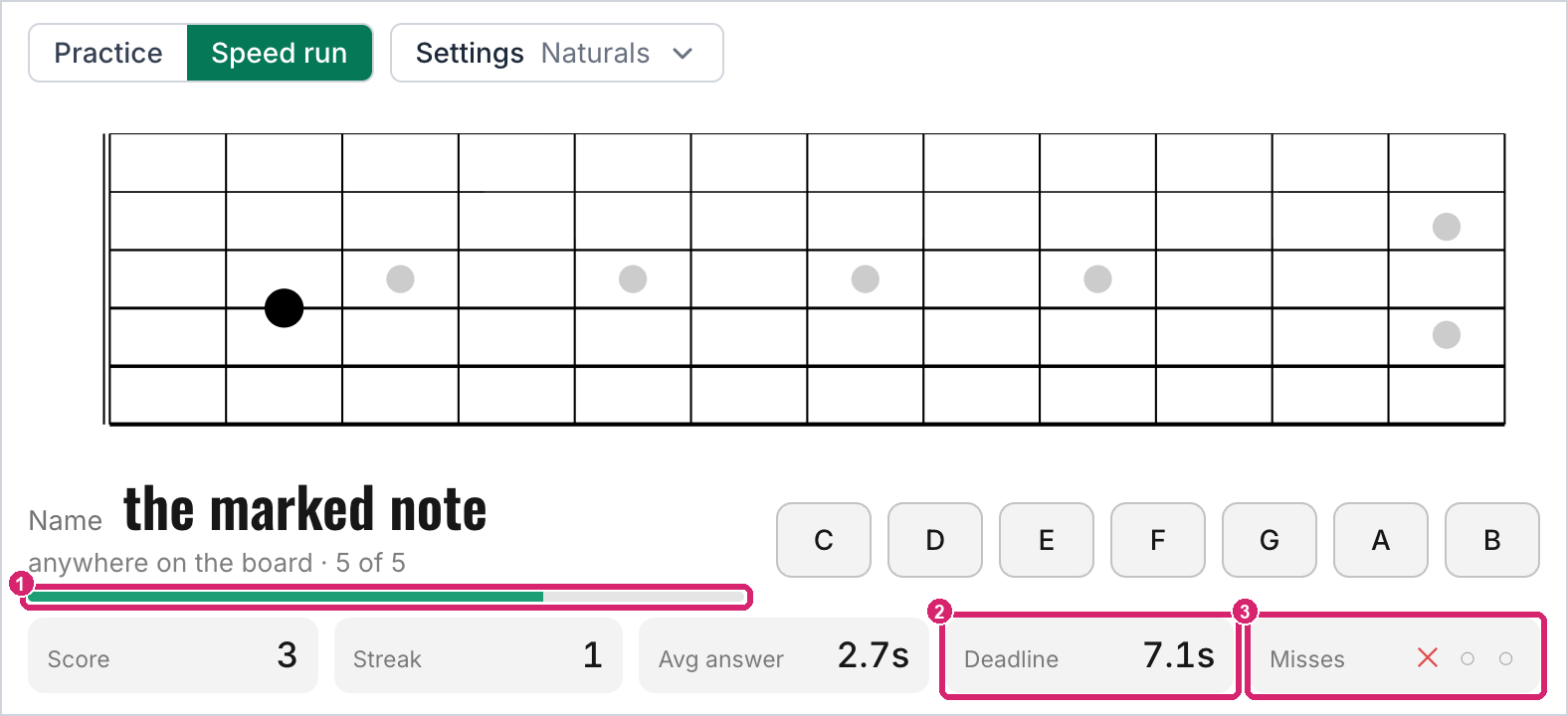
① The time left for this question. ② The current time limit. ③ Misses so far.
A speed run uses only your instrument and the Notes setting; it ignores Ask, Ask over, and the question checkboxes, and it always uses 12 frets. Pause on a mistake has its own setting for speed runs, off by default. Turning it on costs you nothing, since the missed question's time has already run out and the next question starts fresh.
When you're signed in, every run you finish is saved. Runs on a six-string guitar in standard tuning with Naturals or All 12 notes go on the leaderboard, which lists players by their public handle; you can choose a handle on the leaderboard page. Runs with other notes or instruments are saved but not ranked, and a run you leave in the middle isn't saved at all.
6. Answering by playing (beta)
Playing works your hands as well as your eyes. Instead of tapping the screen, you play the note on your guitar, and the trainer listens through your device's microphone. A tap on the board answers too, whichever comes first, so you can keep going without a guitar to hand or in a room too noisy for the microphone.
To try it, open Settings and choose Playing under Answer by. Playing works in Practice (not speed runs) and asks only Find questions. Name questions stay on the note buttons, because with the spot already marked, there's nothing to find. The Sound option goes away while you're playing, since the microphone would hear it.
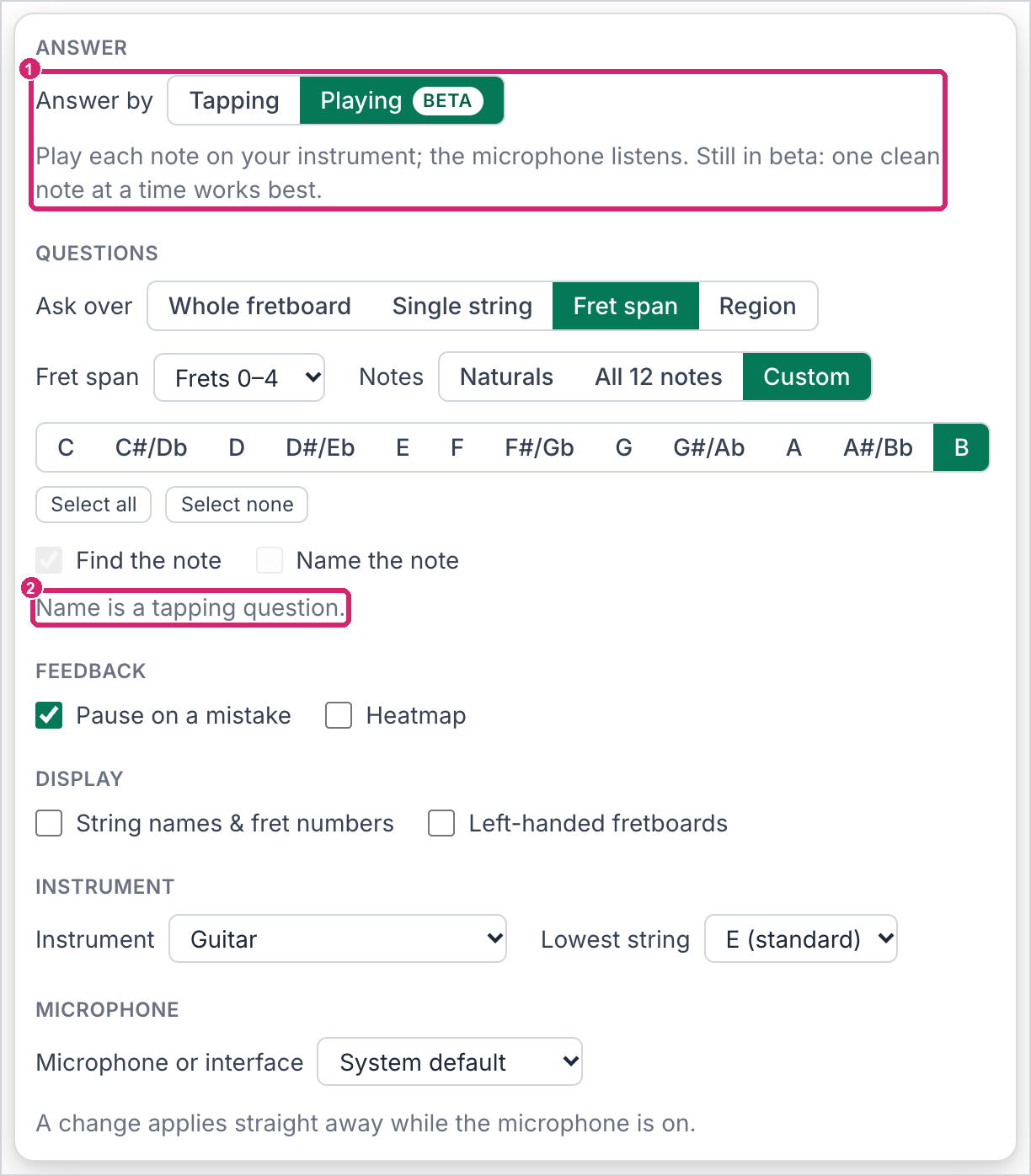
① Playing, marked Beta. ② Name questions are for tapping.
The first time, tap Tap to listen at the top of the trainer and allow the microphone when your browser asks. After that, the trainer starts listening by itself whenever you choose Playing on that device.
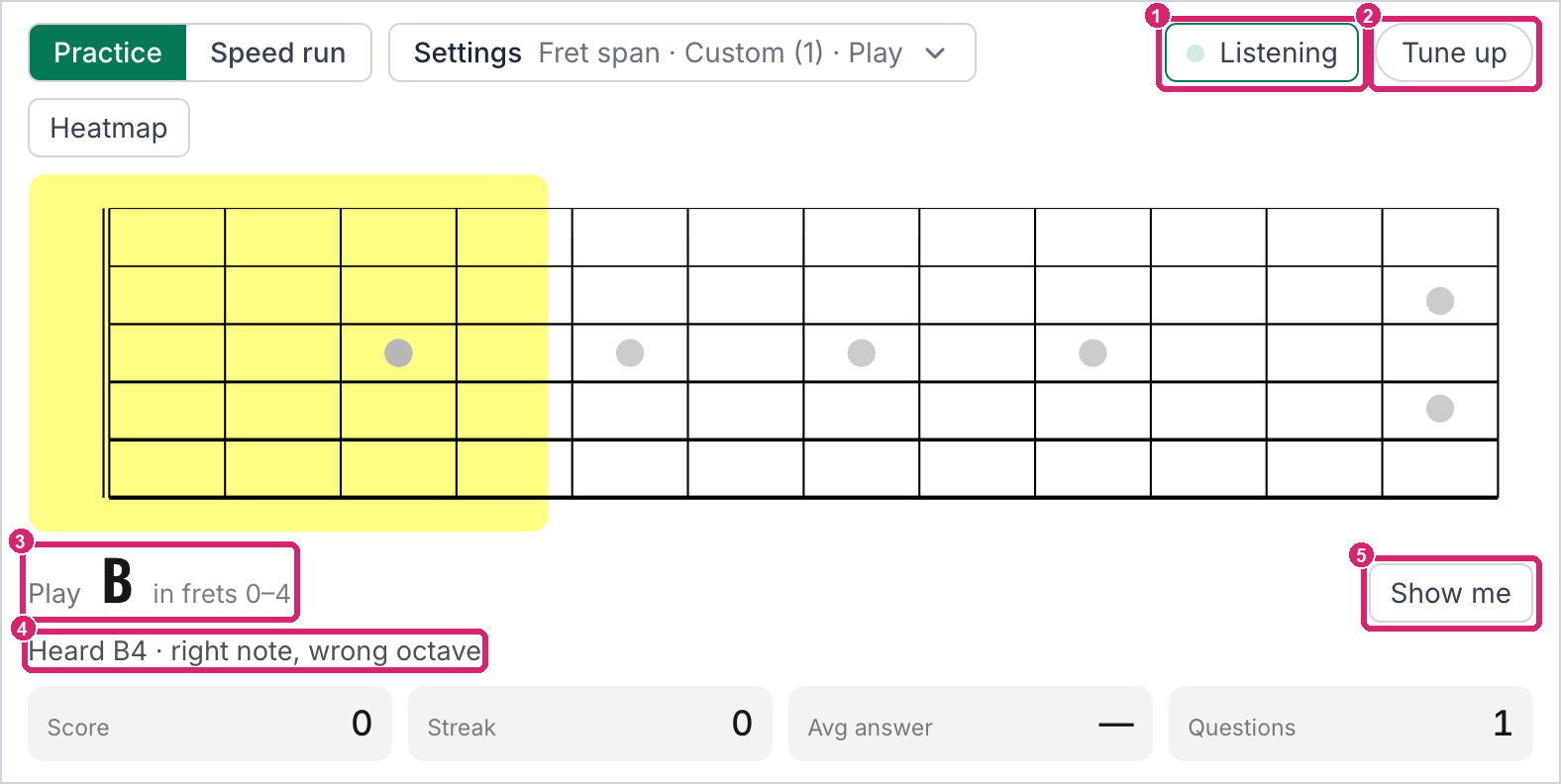
① The microphone. ② The tuner. ③ The question. ④ What the trainer heard. ⑤ Give up and see the answer.
The Listening button has a dot that brightens when the microphone hears sound, which is a quick way to check that it can hear your guitar. Tap the button to pause the microphone, and tap it again to turn it back on. Tune up opens the site's tuner over the trainer, and the trainer stops listening while the tuner is open.
If you play through an audio interface, or your device has more than one microphone, open Settings and choose which one to listen through under Microphone or interface. For an interface with several inputs, the Channel menu picks the one your guitar is plugged into. The site's tuner uses the same choice, and your device remembers it.
The microphone can tell which note you played and in which octave, but not which string you played it on. So the trainer accepts any pitch that one of the spots in the yellow area makes. In the screenshot, the question asks for a B in frets 0–4. The screenshot shows what happens if you play the B on the 7th fret of the high E string: it's the right note, but an octave too high for that area, so the trainer says what it heard and keeps waiting. A wrong note never counts as a miss. It only costs you time.
Taps are judged the way they are in Tapping, so a tap on a wrong spot does count as a miss. Tap only when you mean it as your answer. A tap makes no sound while you're Playing, since the microphone would hear it.
When you play a right one, every spot in the area that makes that exact pitch turns green. Here, the B on the 4th fret of the G string and the open B string are the same pitch. The trainer can't tell which one you used, so it marks both.
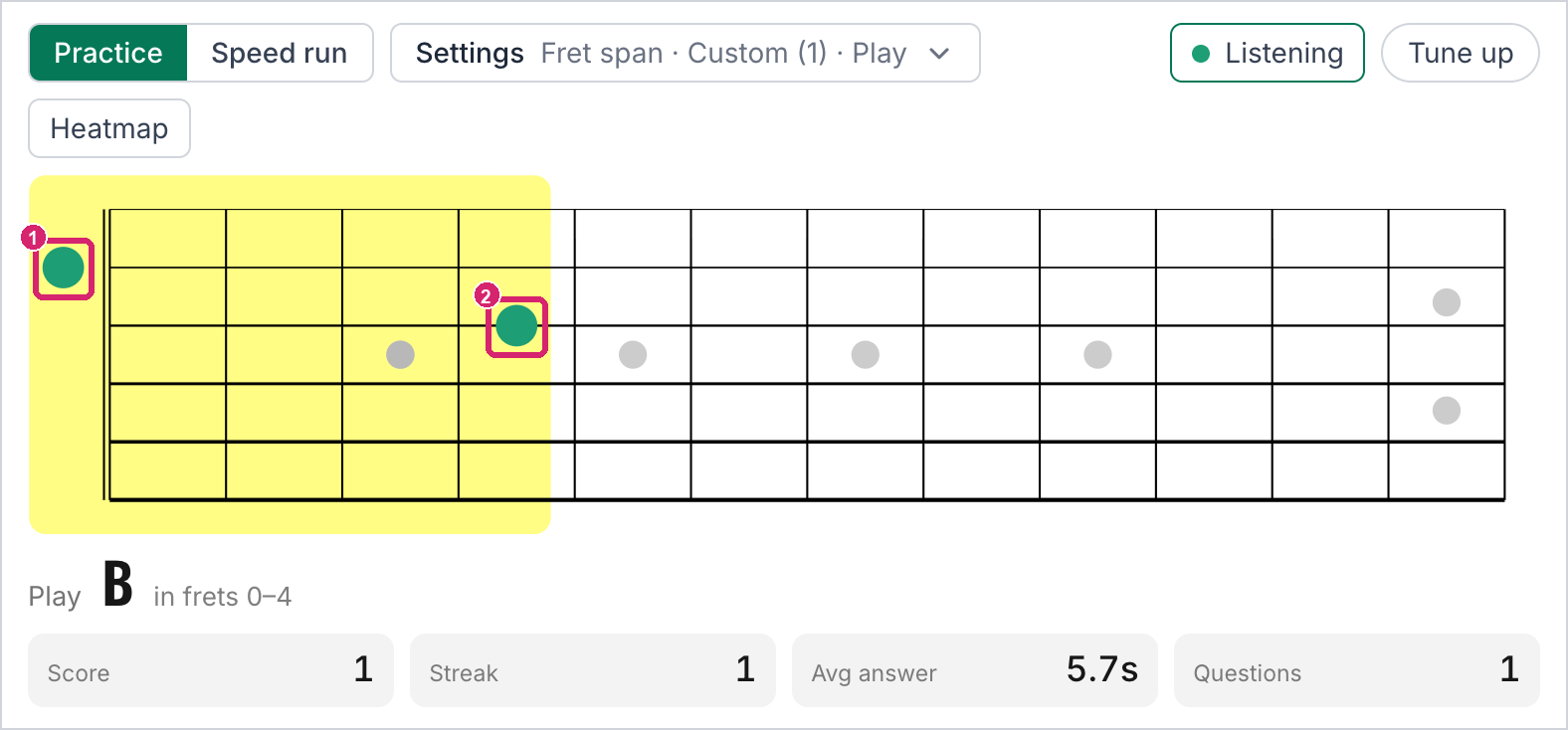
① ② The two spots in the area that sound the B that was played.
Find every one and the drills work with Playing too. One played note finds every spot that sounds it, so in a fret span, the E on the 5th fret of the B string also finds the E on the 9th fret of the G string. You can mix played notes and taps within one question.
Show me gives up on the question. It counts as a miss and shows where the note was.
A few tips while it's in beta:
- Play one clean note at a time, and stop the last note before you play the next. Playing the same note twice in a row needs a fresh pick. If the previous note is still ringing, the trainer tells you so.
- Earbuds and Bluetooth headsets have microphones that barely hear low notes, so when one is connected, the trainer listens through your device's own microphone instead. If it can't, it tells you; take them out and restart the microphone.
- If your browser blocked the microphone, allow it for fretscience.com in the browser's settings, then tap Mic blocked to try again.
Playing keeps its own record of your weak spots and its own heat map, separate from Tapping, because a played answer takes longer than a tap. Its heat map is built from your Find answers, note by note and string by string. For now, that record stays on the device you're using and isn't saved to your account.
The microphone is on only while Playing is chosen and the page is open in front of you. The sound is analyzed on your device to find its pitch, and it is never recorded or sent anywhere.
Playing is labeled beta while more players try it on more devices and instruments. A noisy room, a heavily distorted tone, or notes that run together can make it miss a note or hear one you didn't play. If it gets something wrong, tell me what you played and on what instrument and device. When you're signed in, the Feedback button in the bottom corner of every page comes straight to me; otherwise, use the contact page.
7. Saving and sharing a setup
The page's address always matches the setup on screen, so a bookmark brings back exactly the same exercise. Copy link to this setup, below the score row, copies that address so you can paste it into your notes or send it to a student. A link names the instrument only when it isn't a standard guitar, and the frets only when there are more than 12, so a guitar link opens on whatever instrument and board the person opening it has chosen. If you use the Practice Planner, Add to practice in the same row saves the setup as a practice item.
Signing in keeps your Tapping progress (your heat map and weak spots) on your account, so it follows you from your phone to your computer.